Chapter 6
Adding a new asset
Entering an asset you have bought or built, saving it as a draft and sending it for approval.
When a new asset is placed in service (a truck delivered, a cable route finished, a switch installed), the preparer enters it and sends it for approval.
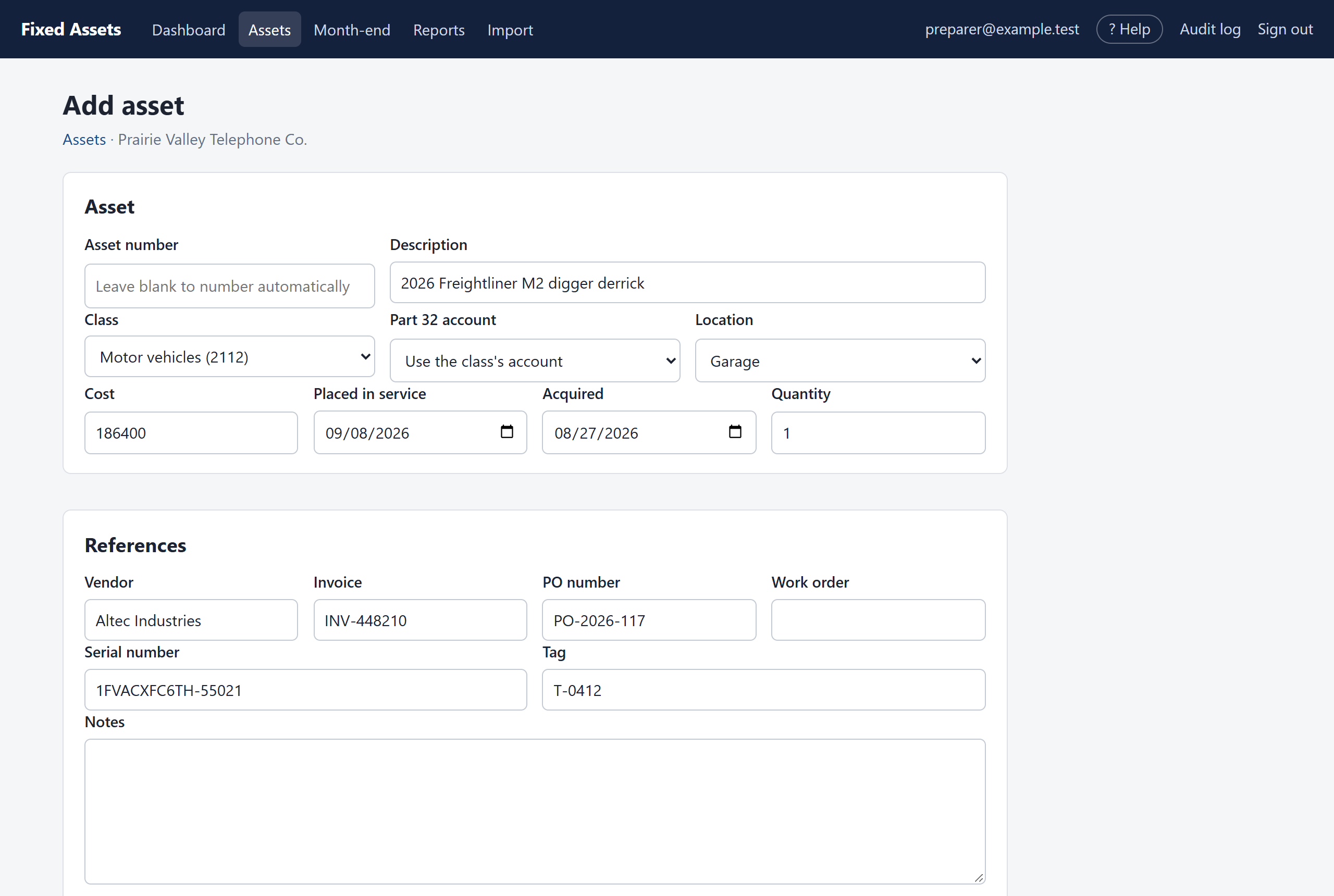
- Click Assets, then Add asset. If you work for more than one company, choose the company and click Continue.
- Type a Description that someone else would recognize in five years, for example "2026 Freightliner M2 digger derrick".
- Choose the Class. This fills in the depreciation settings for every book (see below).
- Enter the Cost and the Placed in service date. Leave Asset number blank to number it automatically.
- Fill in what you know of the rest: location, date acquired, vendor, invoice, PO, work order, serial and tag number, notes.
- Check the Depreciation by book table at the bottom.
- Click Save and submit for approval. Or click Save draft to finish it later.
Depreciation by book
Each book has its own row. When you choose a class, the rows fill in from the class's defaults. You can change any of them for this asset.
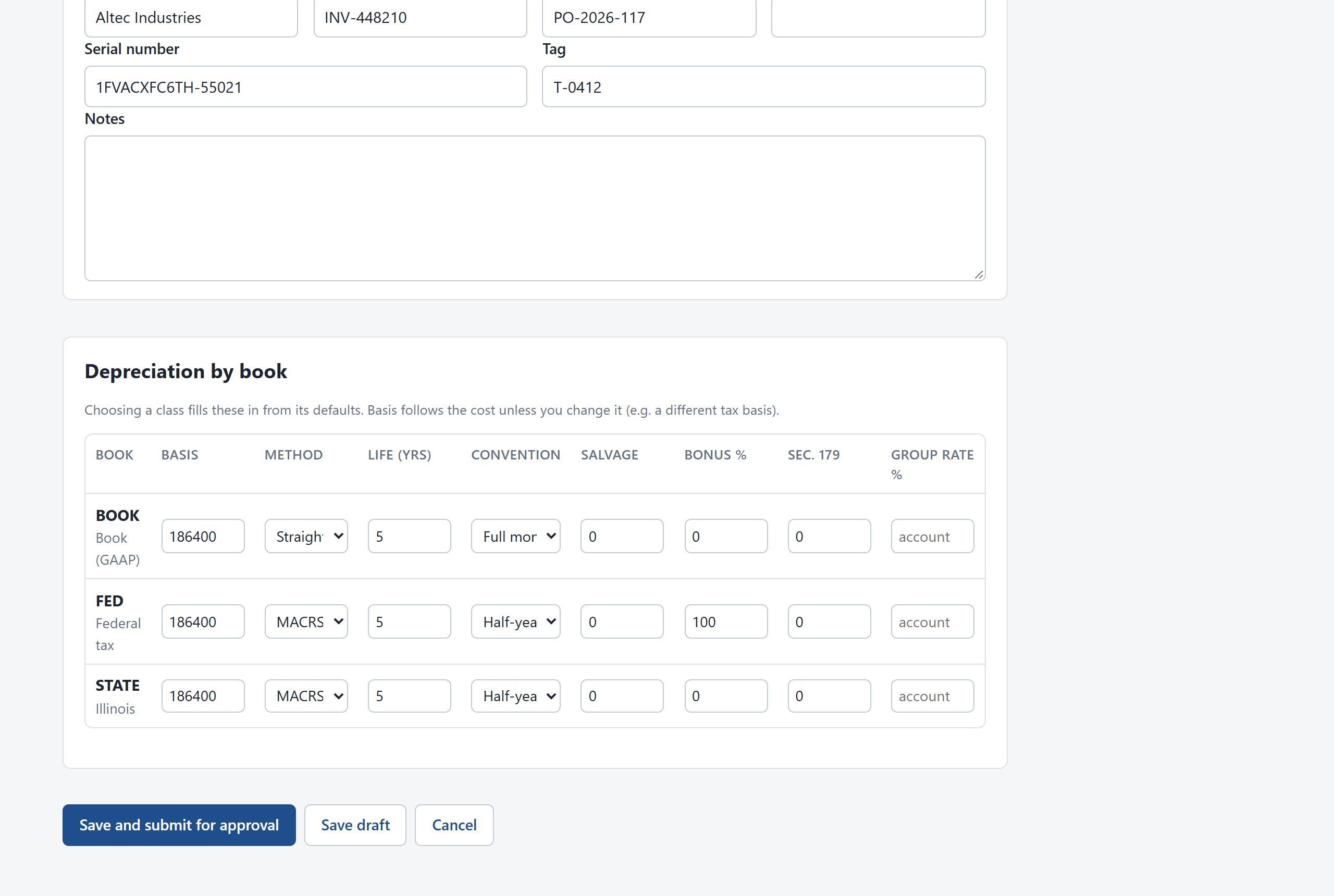
| Column | What it is |
|---|---|
| Basis | The cost for this book. It follows the cost you typed, unless you change it (for example, a different tax basis). |
| Method | Straight-line, declining balance, the MACRS methods for tax, the group method for Part 32, or "Not depreciated" for land and construction in progress. |
| Life | In years. For MACRS this is the recovery period (5, 7, 15, 39 and so on). |
| Convention | How the first and last months are treated: full month, mid-month, next month or half-year for book; half-year, mid-quarter or mid-month for MACRS. |
| Salvage | Value expected at the end of its life (book methods only). |
| Bonus % and Sec. 179 | Tax books only. Bonus depreciation and Section 179 are taken in the month the asset is placed in service. |
| Group rate % | Part 32 only: leave blank to use the account's rate. |
Tip If the program won't submit, it tells you why at the top of the page, for example "Federal tax: The full-month convention can't be used with this method." Your work is saved as a draft, so fix the setting and submit again.
After you submit
- The asset shows as Awaiting approval, and approvers see it on their Approvals page.
- Changed your mind? Open the asset and click Withdraw. It becomes a draft again.
- If the approver sends it back, it returns to Draft with their reason in a yellow box. Fix it and submit again.
- Once approved, it goes on the books in the company's open month. If it was placed in service in an earlier month, the depreciation it missed is caught up automatically when that month is closed.
Changing an asset later
Once an asset is active, Edit changes only its descriptive details: description, location, vendor, references, serial and tag numbers and notes. These changes are recorded in the audit log. Anything that affects the money (cost, dates, class, depreciation, disposal) is done with Record a change, so that it can be approved. See Recording changes.