Chapter 3
Finding your way around
The top bar, the dashboard, the asset list and the asset page.
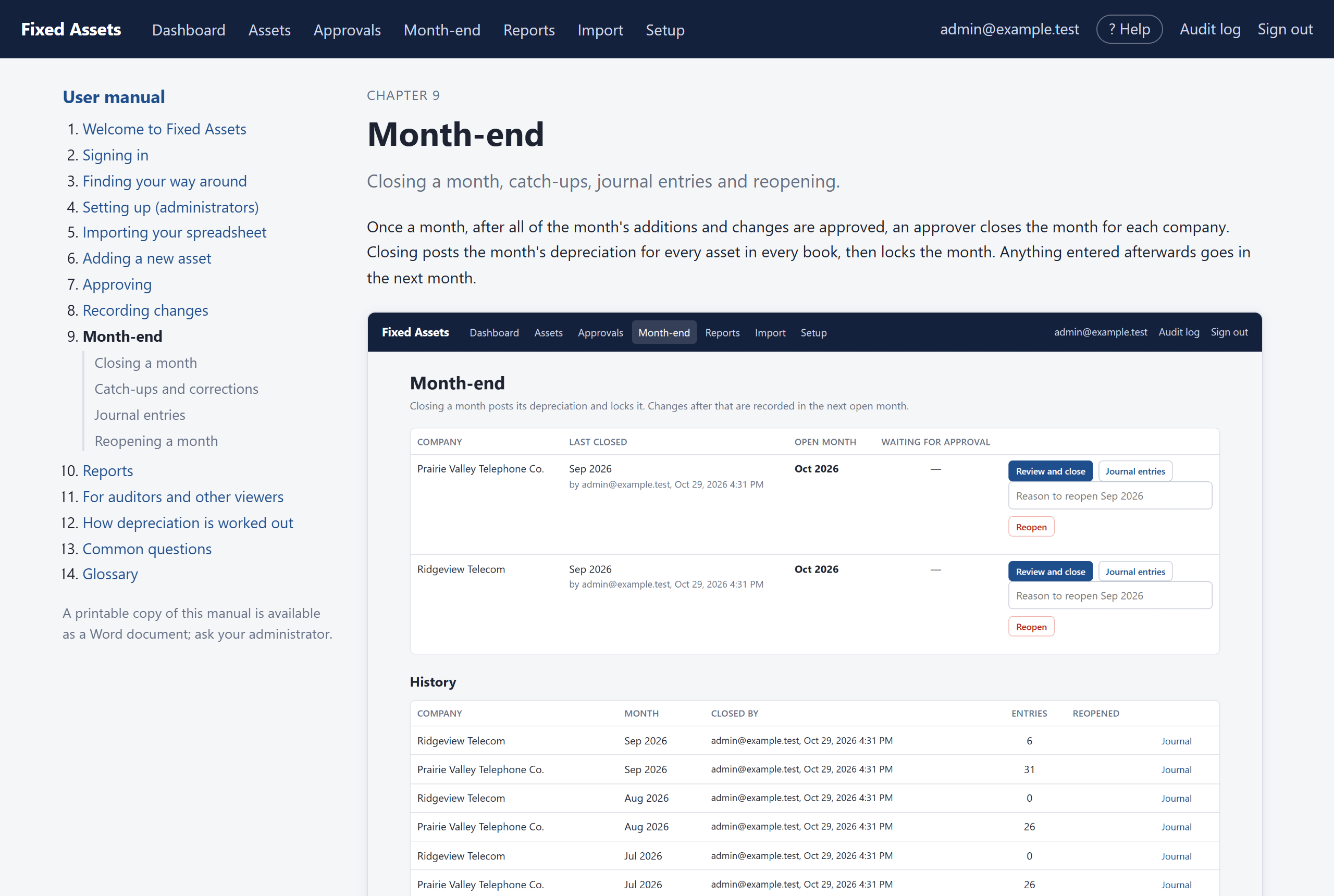
The top bar
The dark bar across the top is the same on every page. You only see the parts your role allows.
| Link | What it is for |
|---|---|
| Dashboard | Totals for each company, and anything that needs you. |
| Assets | The asset register: search, filter, open any asset, add a new one. |
| Approvals | Approvers only: everything waiting to be approved. |
| Month-end | Each company's open month, closing a month, journal entries. |
| Reports | Every report, with Excel and CSV downloads. |
| Import | Preparers: bring in a spreadsheet of assets. |
| Setup | Administrators only: companies, users, books, classes and rules. |
| ? Help | This manual, opened at the chapter for the page you are on. |
| Your email | Your password and two-factor settings. |
| Audit log | A record of every sign-in, change, approval and download. |
The dashboard
The dashboard is the first page you see. Across the top are the totals for all your companies: number of active assets, cost, accumulated depreciation and net book value, from the main (GAAP) book. Below that is a card for each company with its own figures.
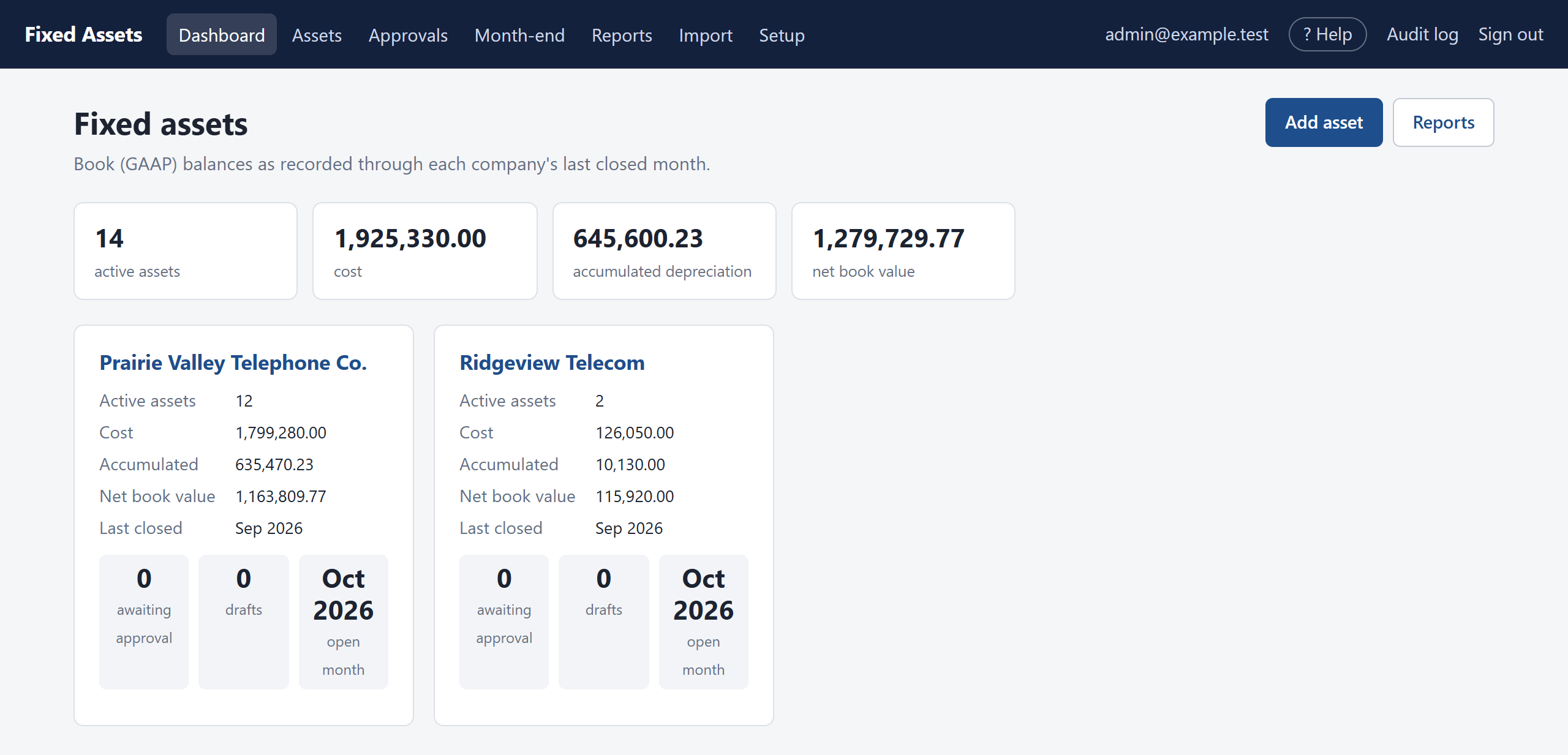
- Awaiting approval shows how many entries are waiting. Approvers can click through to approve them.
- Drafts are entries someone has started but not yet submitted.
- The last box shows the company's open month. When that month has ended it turns orange and says ready to close, and approvers see a Close button.
If something needs you, a For you box appears at the top: items waiting for your approval, your unsubmitted drafts, and anything an approver sent back to you with the reason.
The asset list
Click Assets to see the register. Use the filters at the top to narrow it down by company, class or status, or type in the search box. Search looks at the asset number, description, serial number, tag, vendor, invoice, PO and work order.
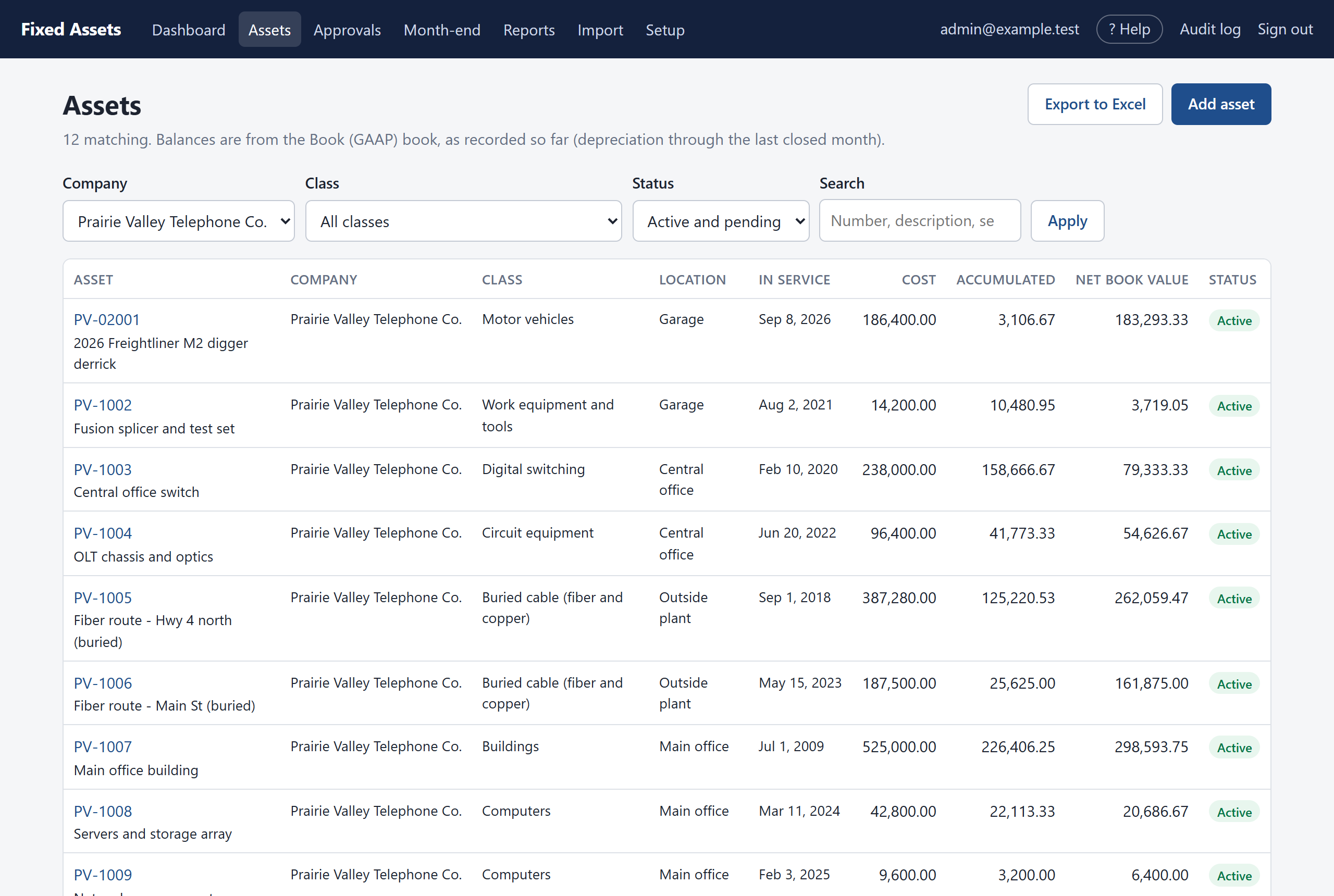
- Click an asset number to open the asset.
- Export to Excel downloads the asset register for the same company.
- Add asset (preparers) starts a new asset.
- The status shows where each asset stands: Draft, Awaiting approval, Active, Disposed or Transferred out.
The asset page
Open any asset to see everything about it on one page.
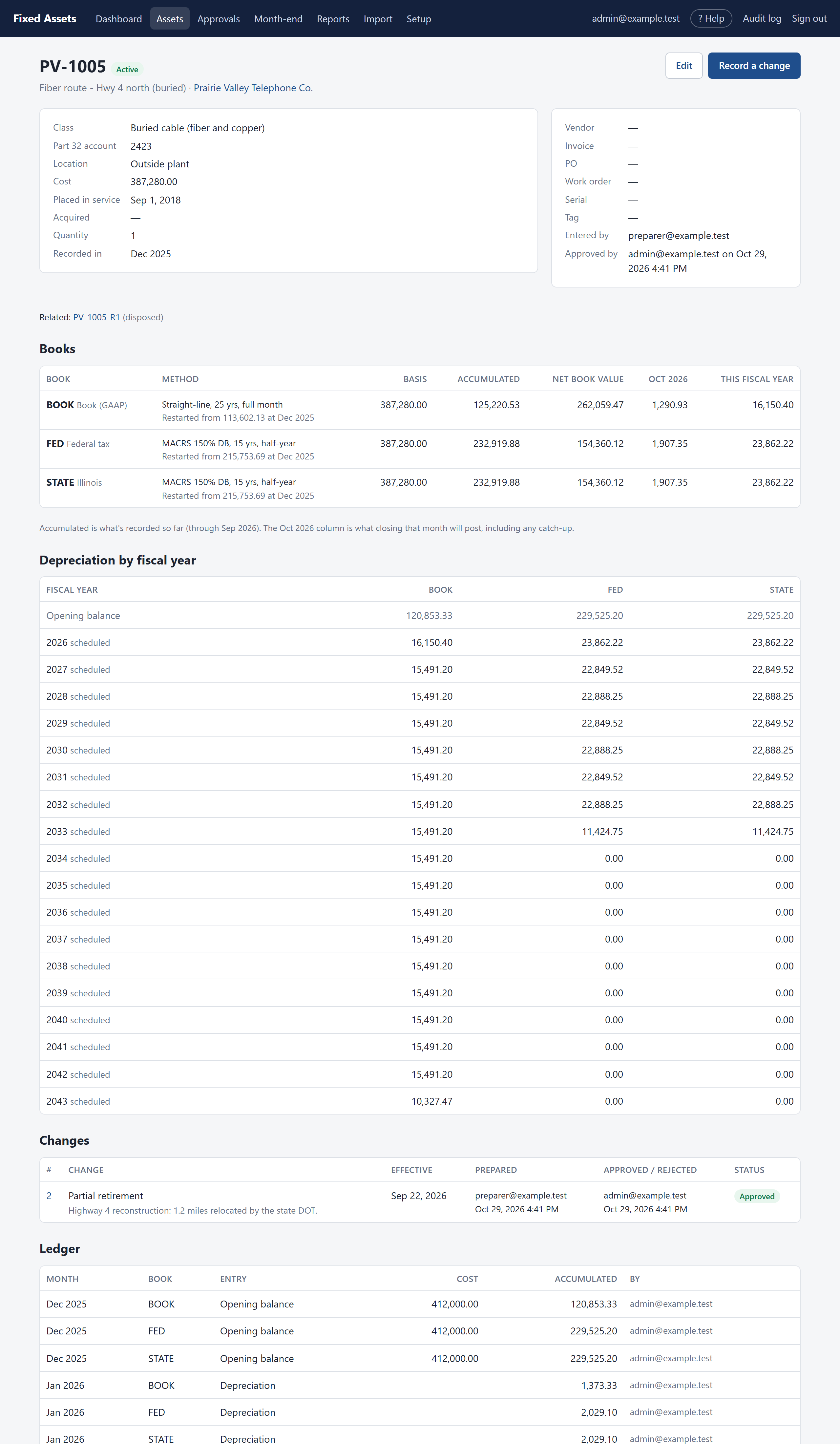
- Details at the top: class, Part 32 account, location, cost, dates, vendor, invoice, serial and tag numbers, who entered and approved it.
- Books: for each book, the method and life, the cost, the accumulated depreciation so far, the net book value, what closing the open month will post, and the total for this fiscal year.
- Depreciation by fiscal year: past years as posted, and future years as scheduled (marked "scheduled").
- Changes: every change ever recorded for the asset, who prepared it and who approved it.
- Ledger: every entry the asset has made in the books, month by month. This is the detail auditors trace to.
Buttons at the top let preparers Edit the descriptive details or Record a change, and let approvers Approve a new asset.