Chapter 4
Setting up (administrators)
Books, companies, asset classes, locations, Part 32 rates, tax limits, users and rules.
Setup is where the administrator tells Fixed Assets how your companies work. Do it once, in the order below, before importing anything. You can come back and change most of it later.
1. Books you keep
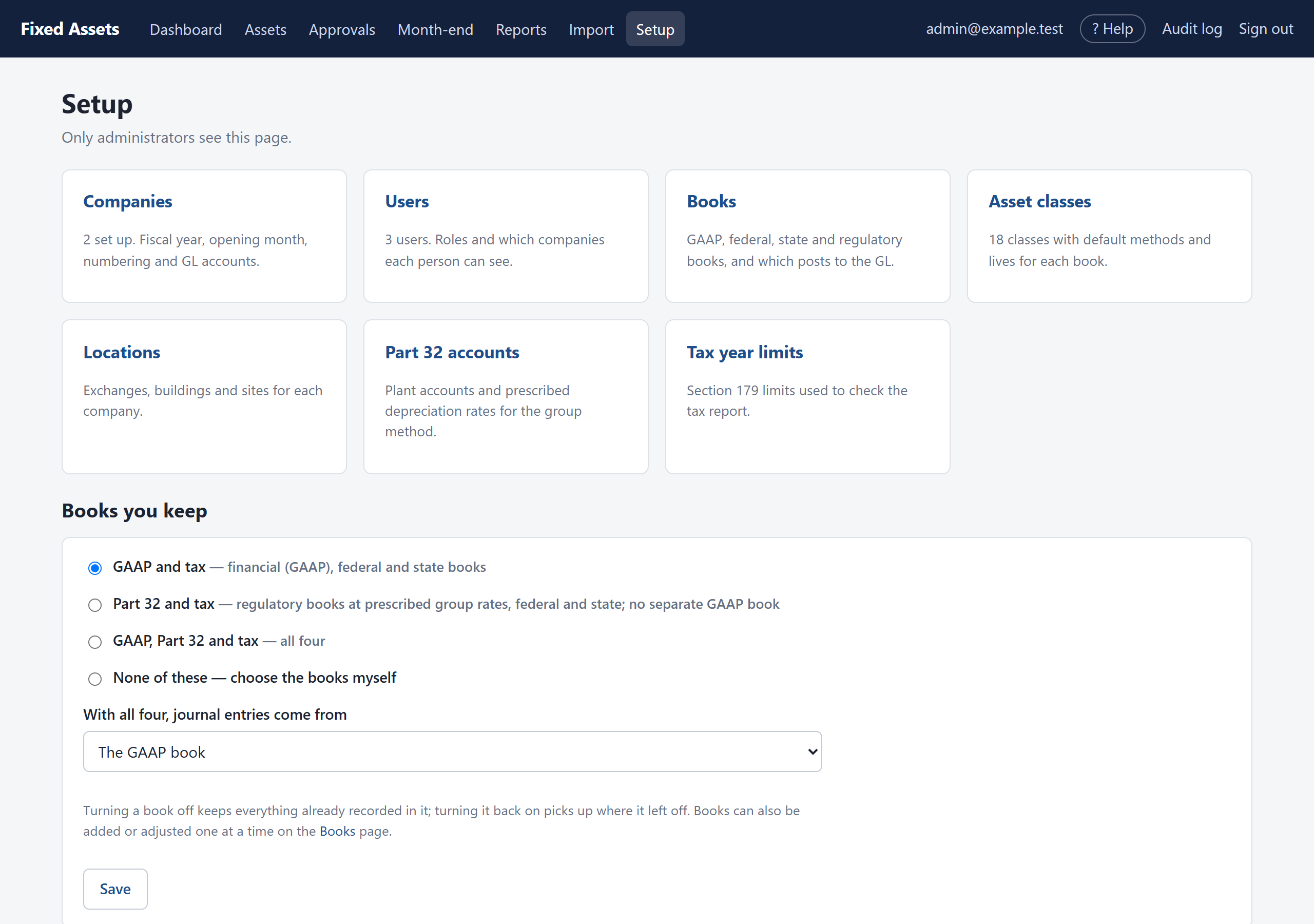
Choose which sets of books the program keeps. Every asset is depreciated separately in each one.

| Choice | Books | Journal entries come from |
|---|---|---|
| GAAP and tax | Book (GAAP), Federal tax, Illinois | GAAP |
| Part 32 and tax | Regulatory (Part 32), Federal tax, Illinois | Part 32 |
| GAAP, Part 32 and tax | All four | Your choice |
| None of these | Tick exactly the books you want | Your choice, or none |
Click Save. Turning a book off keeps everything already recorded in it; turning it on again picks up where it left off.
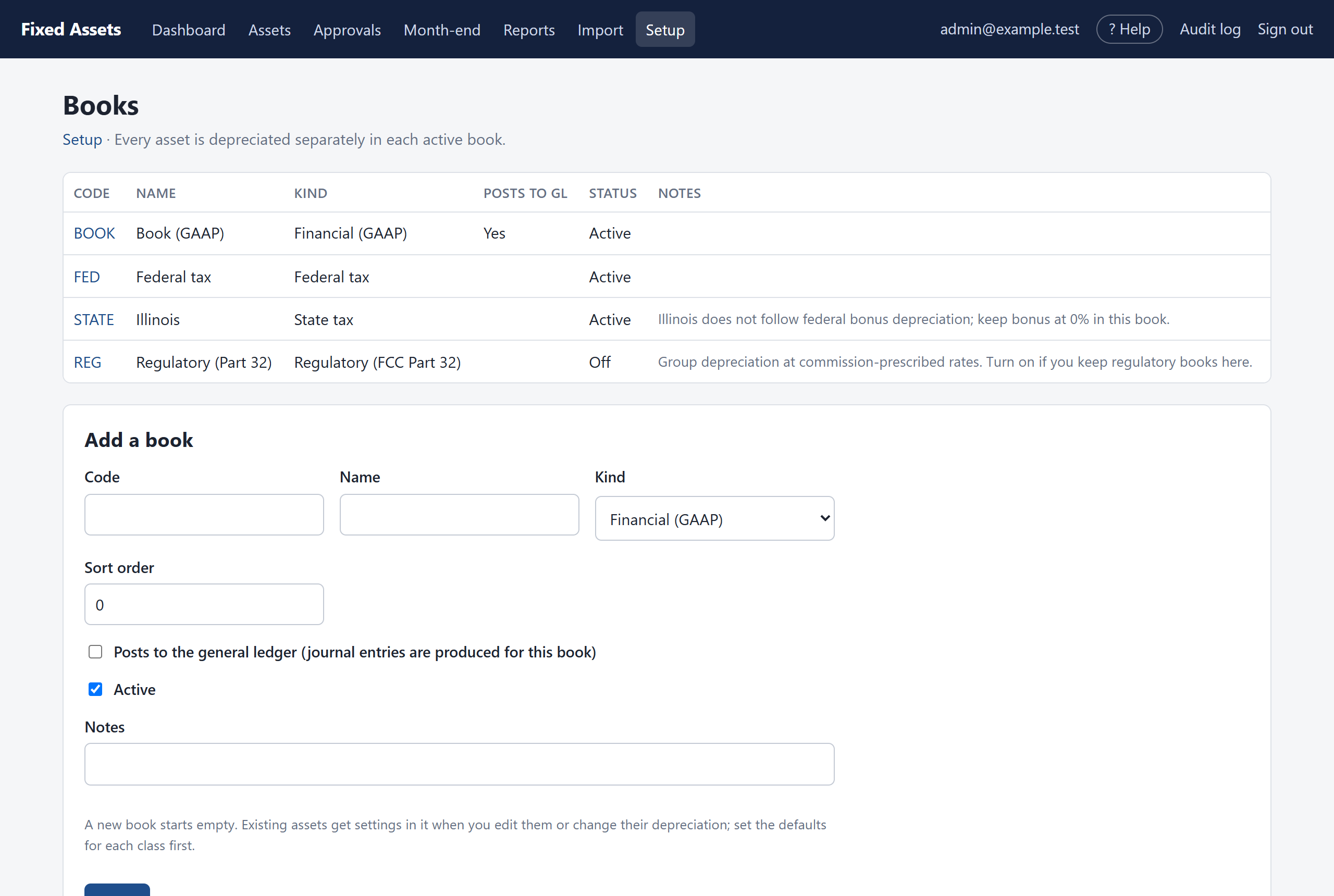
The Books card on the Setup page lets you rename a book, add one or change which one feeds the general ledger.
2. Companies
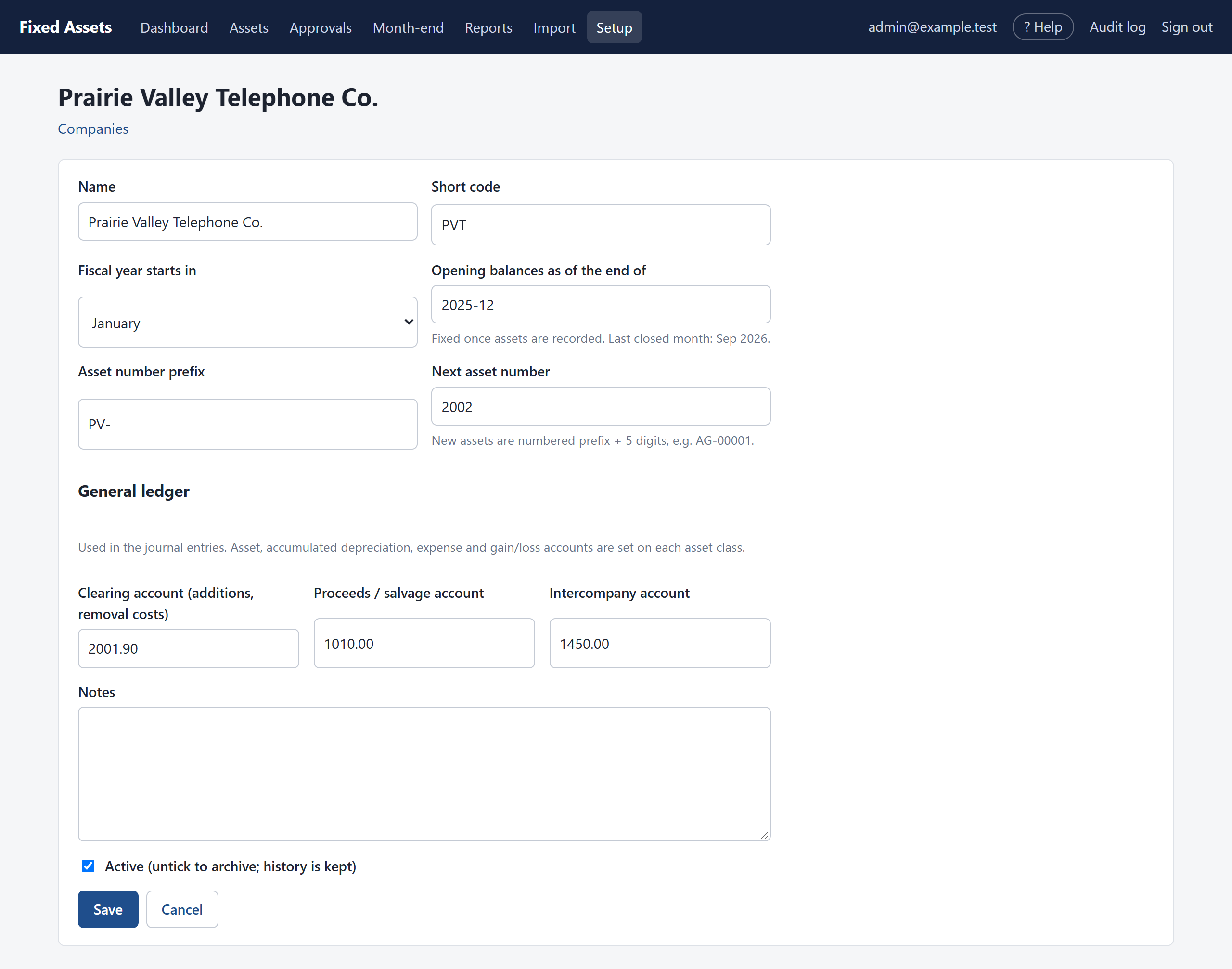
Click Companies, then Add company. Fill in:
| Field | What to enter |
|---|---|
| Name and short code | The company name, and a short code such as PVT for reports. |
| Fiscal year starts in | January for a calendar year. |
| Opening balances as of the end of | The month-end your spreadsheet figures are as of, usually your last year-end (December 2025). The first month you close will be the month after. This can't be changed once assets are recorded. |
| Asset number prefix and next number | New assets are numbered automatically, for example PV-02001, PV-02002. Imported assets keep the numbers from your spreadsheet. |
| General ledger accounts | The clearing account (offset for additions and removal costs), the proceeds account (cash from sales and salvage) and the intercompany account (transfers between companies). Used only in the journal entries. |
To stop using a company, untick Active. Its history is kept.
3. Asset classes
Classes come set up with a starter list of telephone-company categories. Each one has a default method and life for every book, and they follow the IRS telephone asset classes for tax. Open each class you will use and check it.
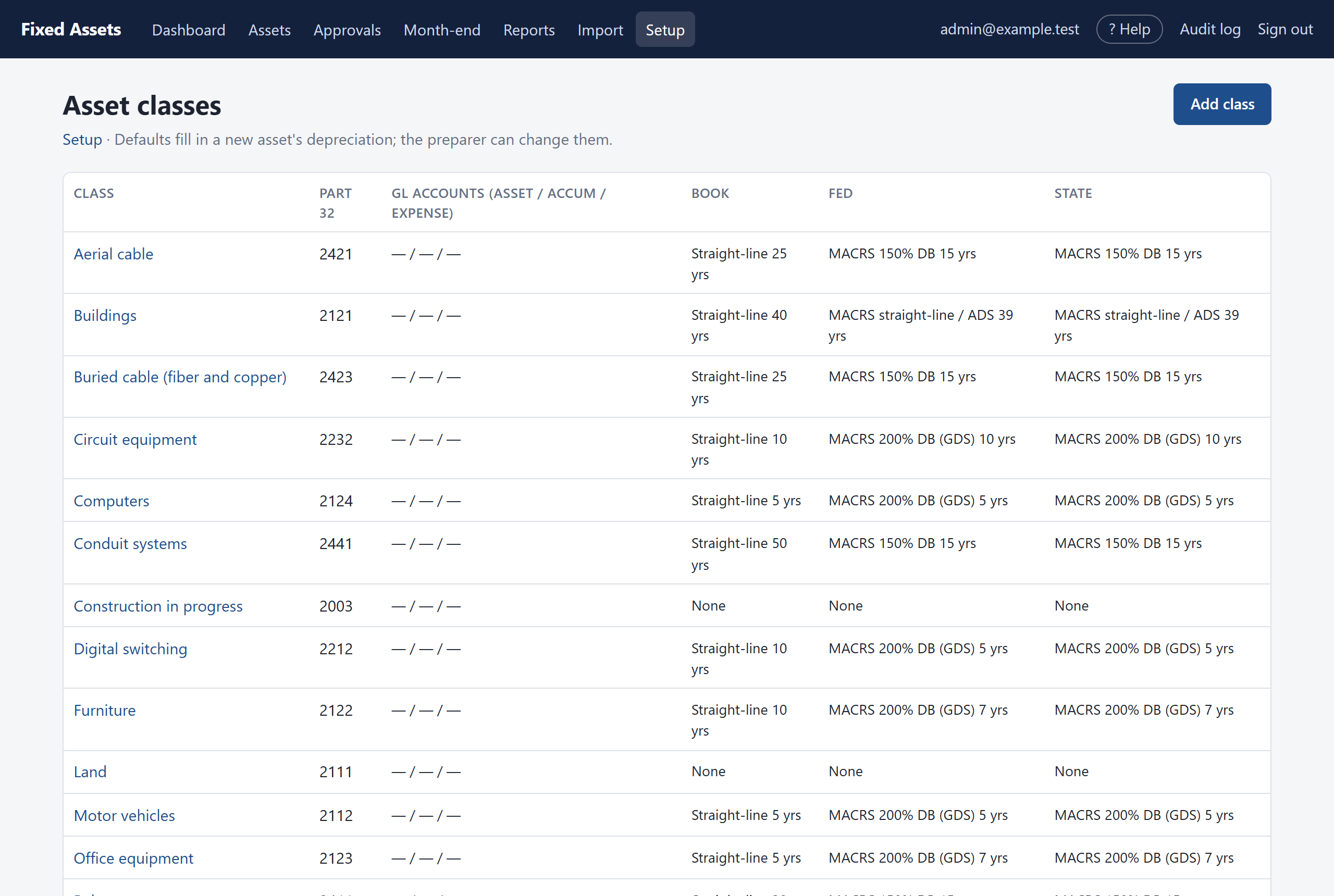
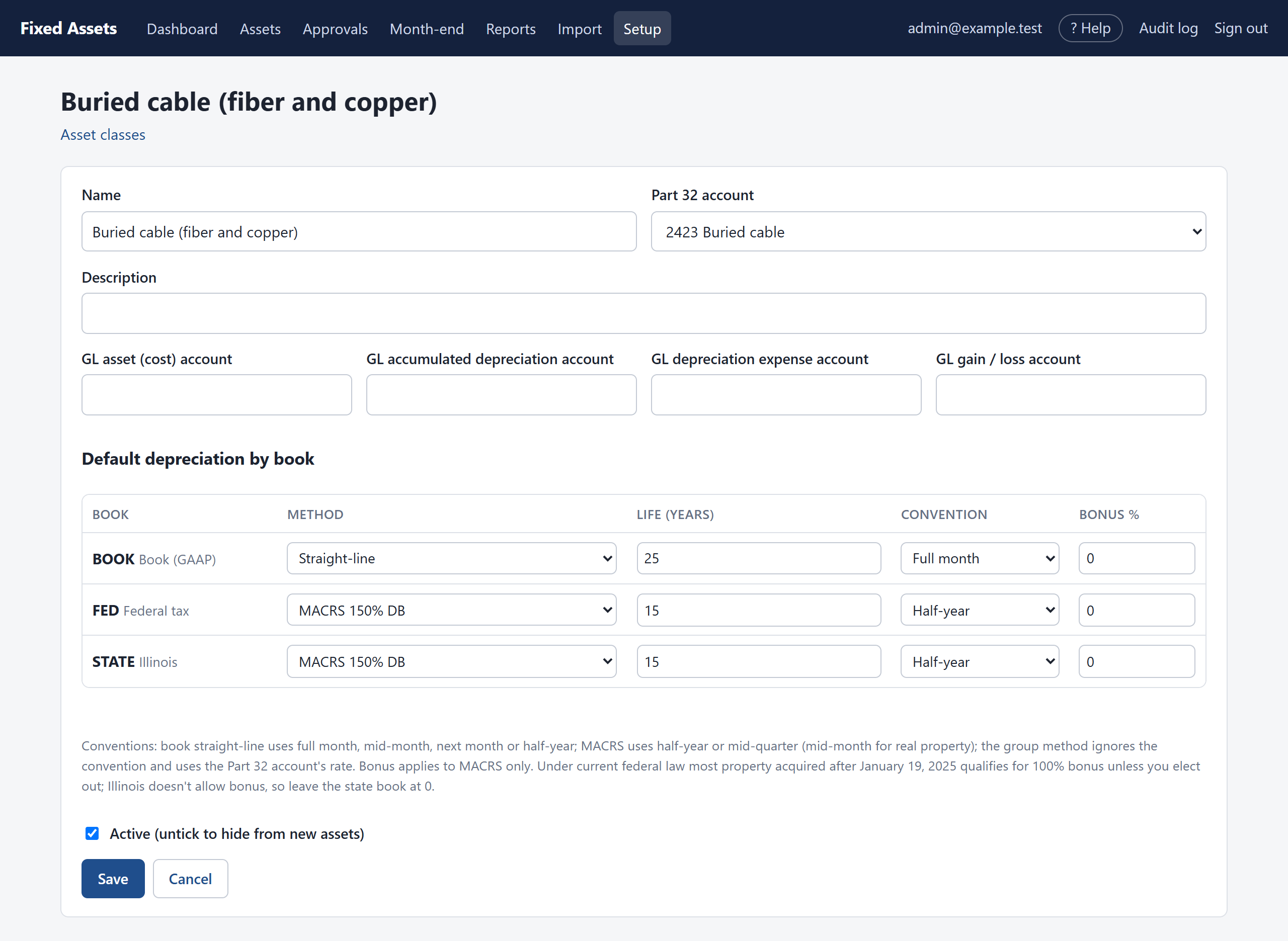
- Part 32 account: the regulatory plant account for the class.
- GL accounts: the asset (cost), accumulated depreciation, depreciation expense and gain/loss accounts used in the journal entries.
- Default depreciation by book: the method, life, convention and bonus % that a new asset in this class starts with. The preparer can still change them on each asset.
4. Locations
Exchanges, central offices, buildings, yards. Imports create locations automatically from the spreadsheet, so you may not need to add any by hand.
5. Part 32 accounts and rates
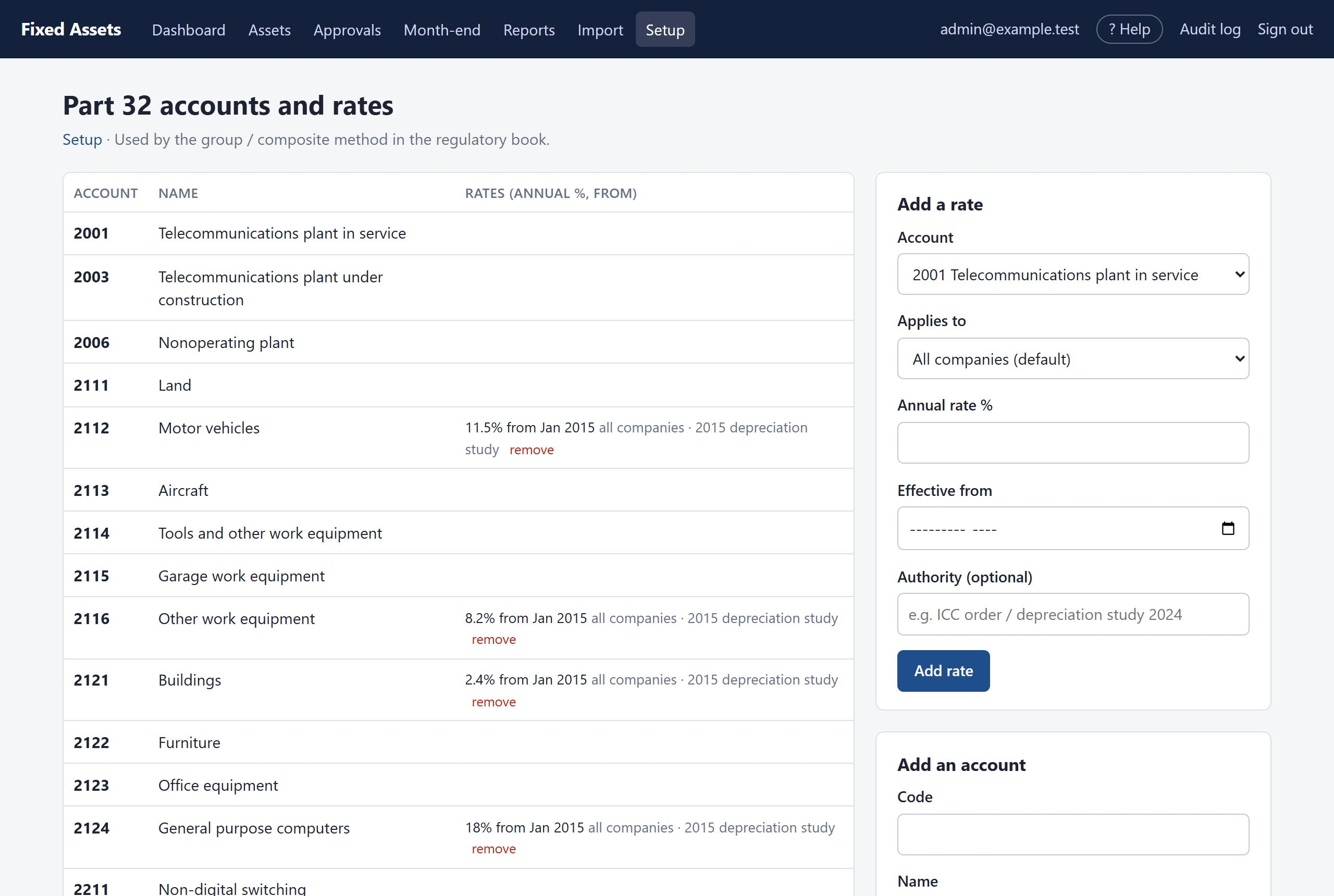
If you keep a Part 32 book, enter the depreciation rate for each plant account you use. Rates apply from the month you give, so a new rate from a later depreciation study only affects later months. A rate for one company replaces the default rate for that company.
6. Tax year limits
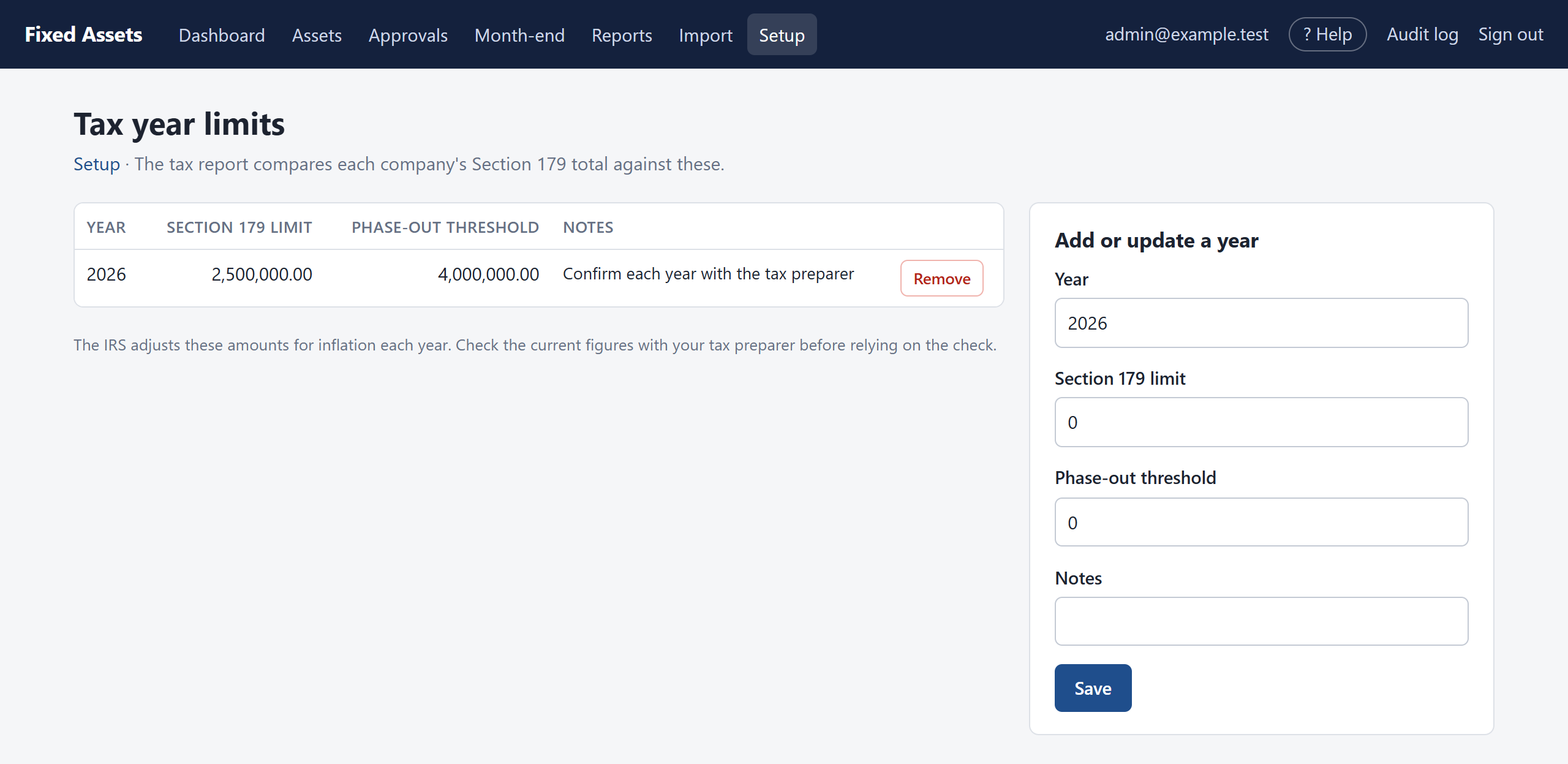
Enter each year's Section 179 limit and phase-out threshold. The tax report compares the year's Section 179 against them. Check the figures with your tax preparer each year.
7. Users
Click Users, then Add user.
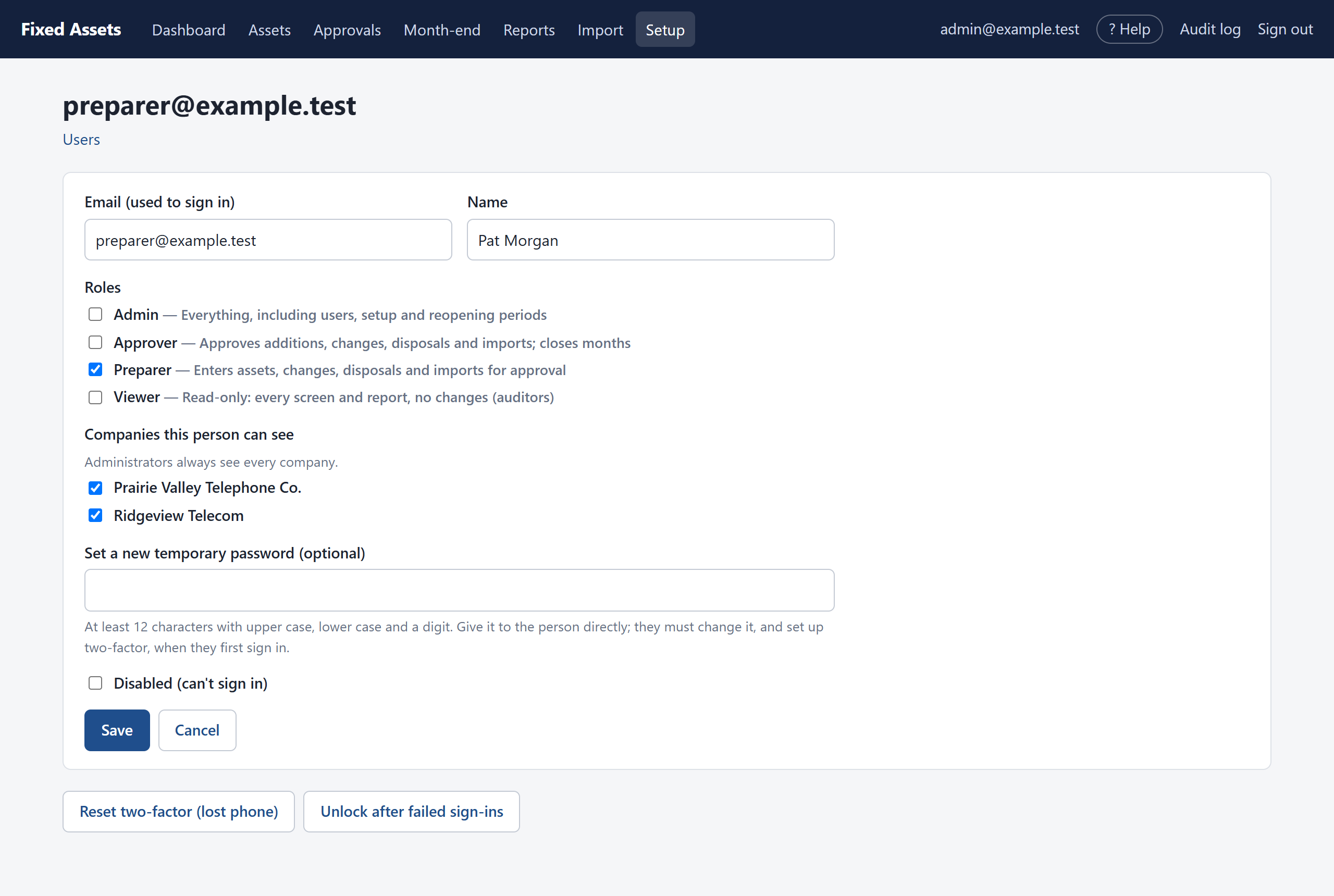
- Enter their email (used to sign in) and name.
- Tick their roles. A person can have more than one, for example Preparer and Approver. Auditors get Viewer only.
- Tick the companies they may see. Administrators always see every company.
- Enter a temporary password and give it to them in person or by phone. They must change it when they first sign in.
- Click Save.
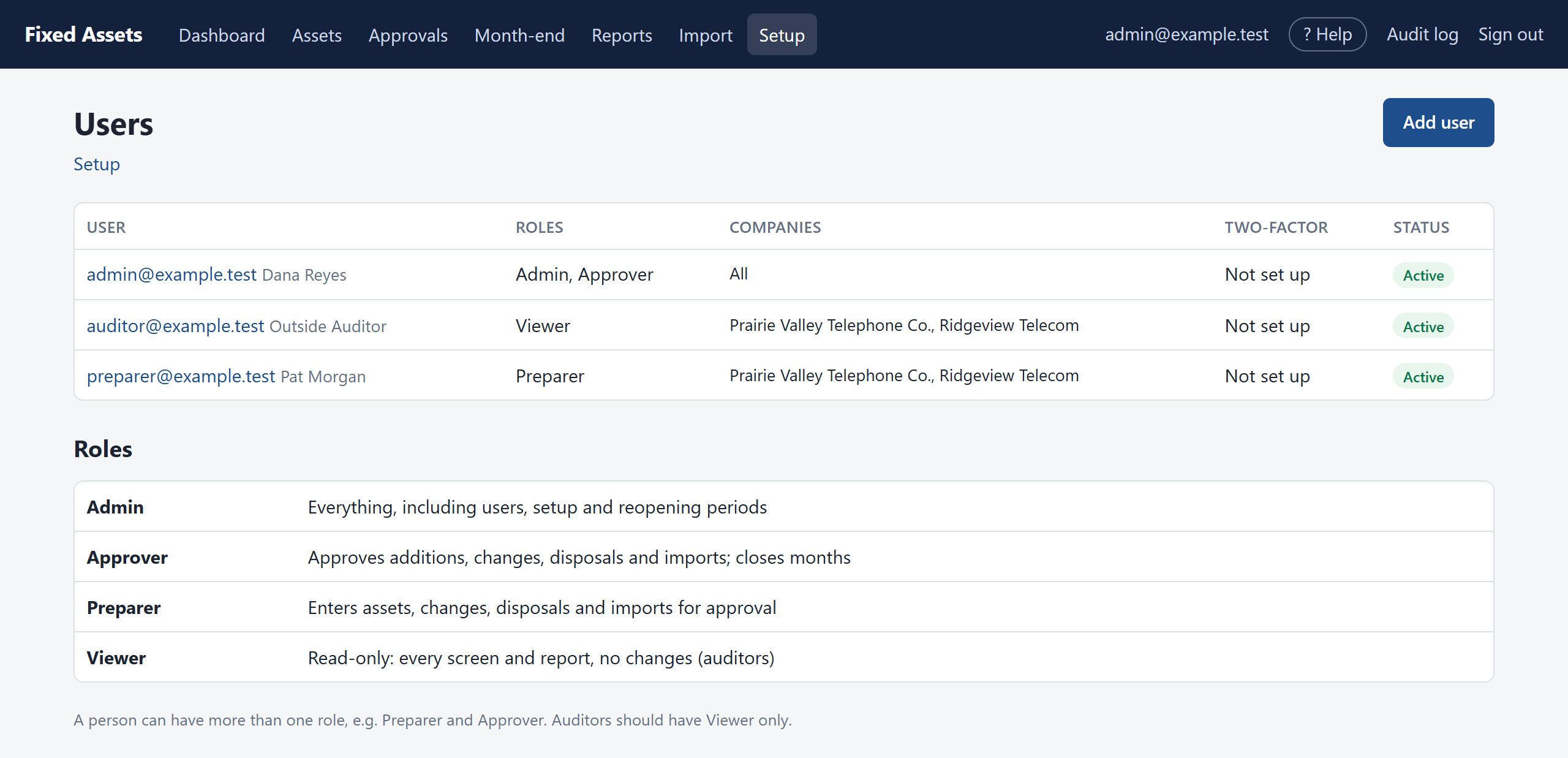
From a user's page you can also set a new temporary password, Disable the account (they can't sign in, and their history is kept), Reset two-factor if they lose their phone, or Unlock them after too many wrong passwords.
8. Sign-in and approval rules
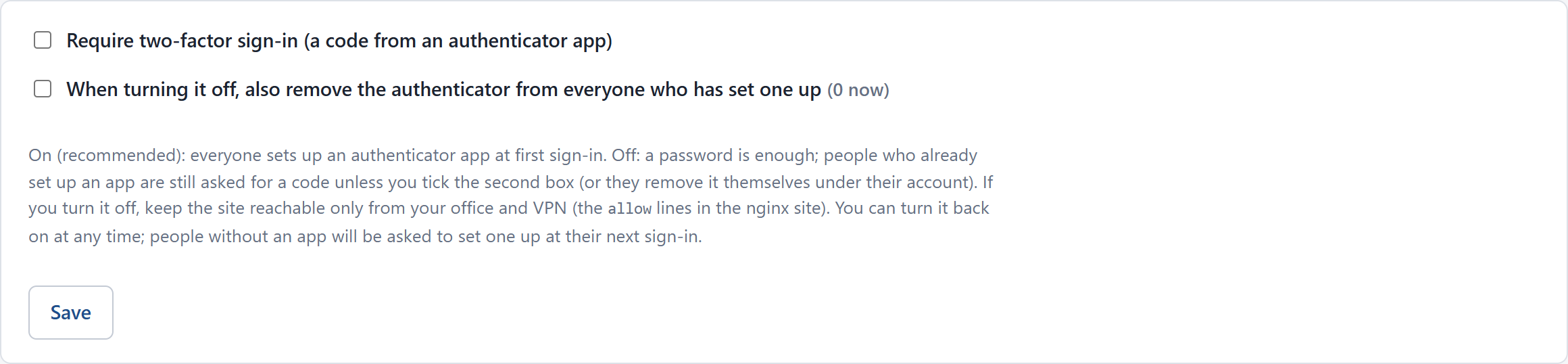
- Require two-factor sign-in: on, everyone sets up an authenticator app. Off, a password is enough. When turning it off you can also remove the app from everyone who set one up. If you turn it off, keep the site reachable only from your office and VPN.
- Allow people to approve their own entries: off by default, so a second person always approves. Turn it on only if your team is too small to work that way; self-approved items are marked in the audit log and the change log.
What next
With Setup done, bring in each company's spreadsheet: see Importing your spreadsheet.