Chapter 7
Approving
For approvers: reviewing what preparers send you, approving it or sending it back.
Click Approvals to see everything waiting, in three groups: new assets, changes to existing assets, and imports. Nothing here is on the books yet, and a company's month can't be closed while anything for it is waiting.
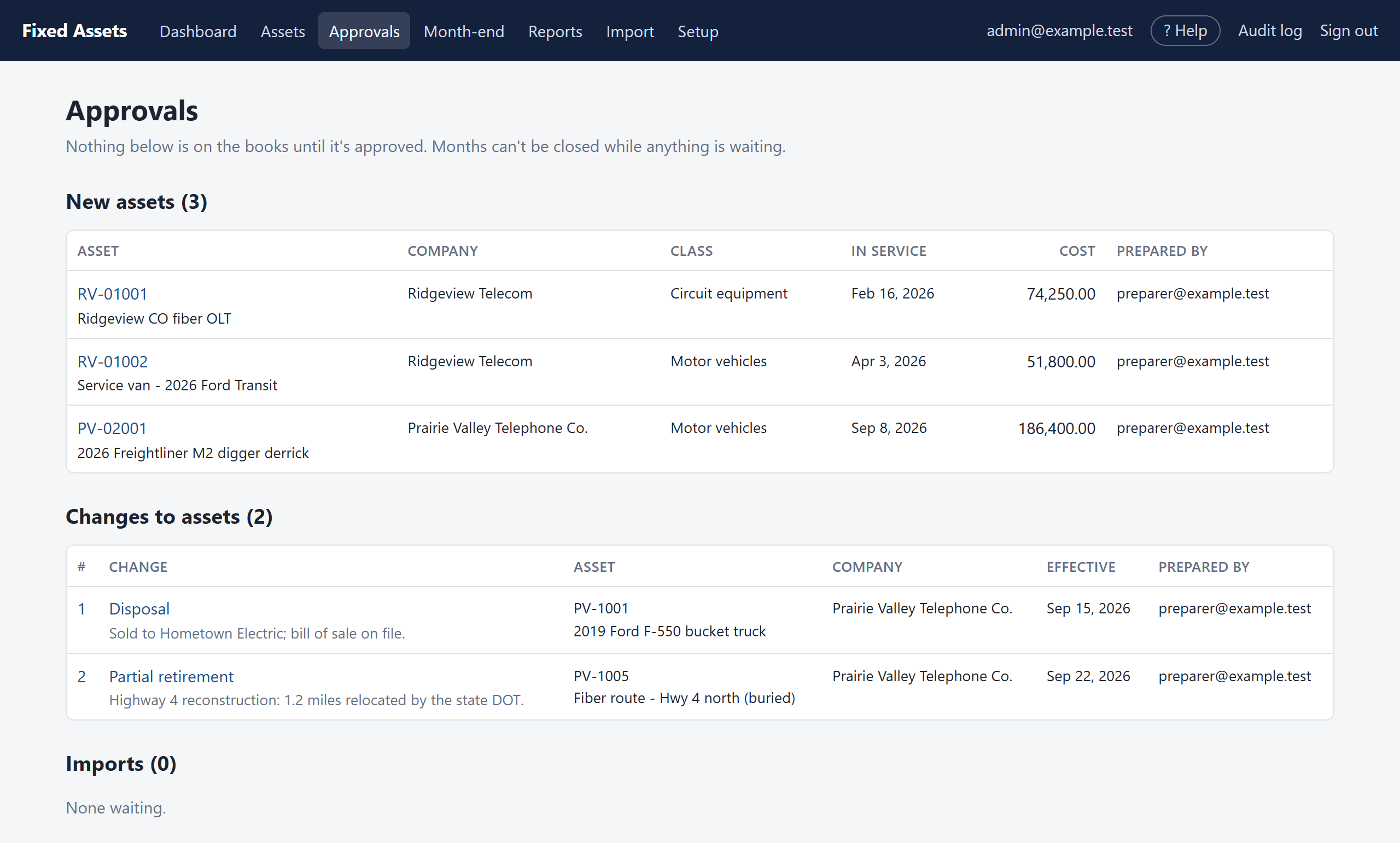
Approving a new asset
Click the asset number. At the top of the asset page is an Approve this addition box, which shows who prepared it and which month it will be recorded in.
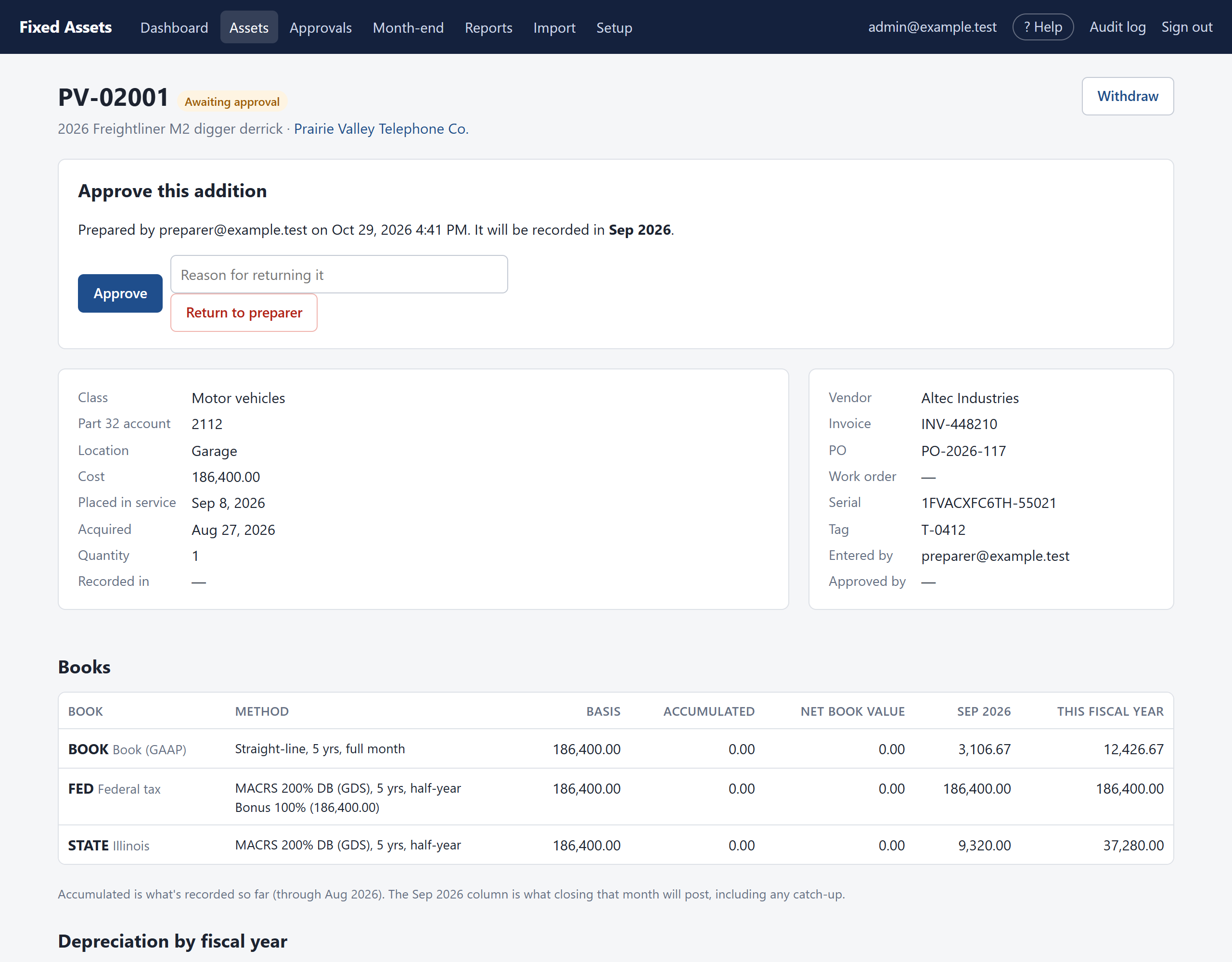
- Check the description, class, cost, in-service date and the settings for each book.
- If everything is right, click Approve. The asset goes on the books.
- If something needs fixing, type the reason in the box and click Return to preparer. The asset goes back to them as a draft, with your note.
Approving a change
Click the change. The page shows what is being changed and, under What approving will do, the effect on each book before anything is saved. For a disposal that is the cost, the accumulated depreciation and the gain or loss in each book. For a change in life or method, it is what closing the open month will post, before and after.
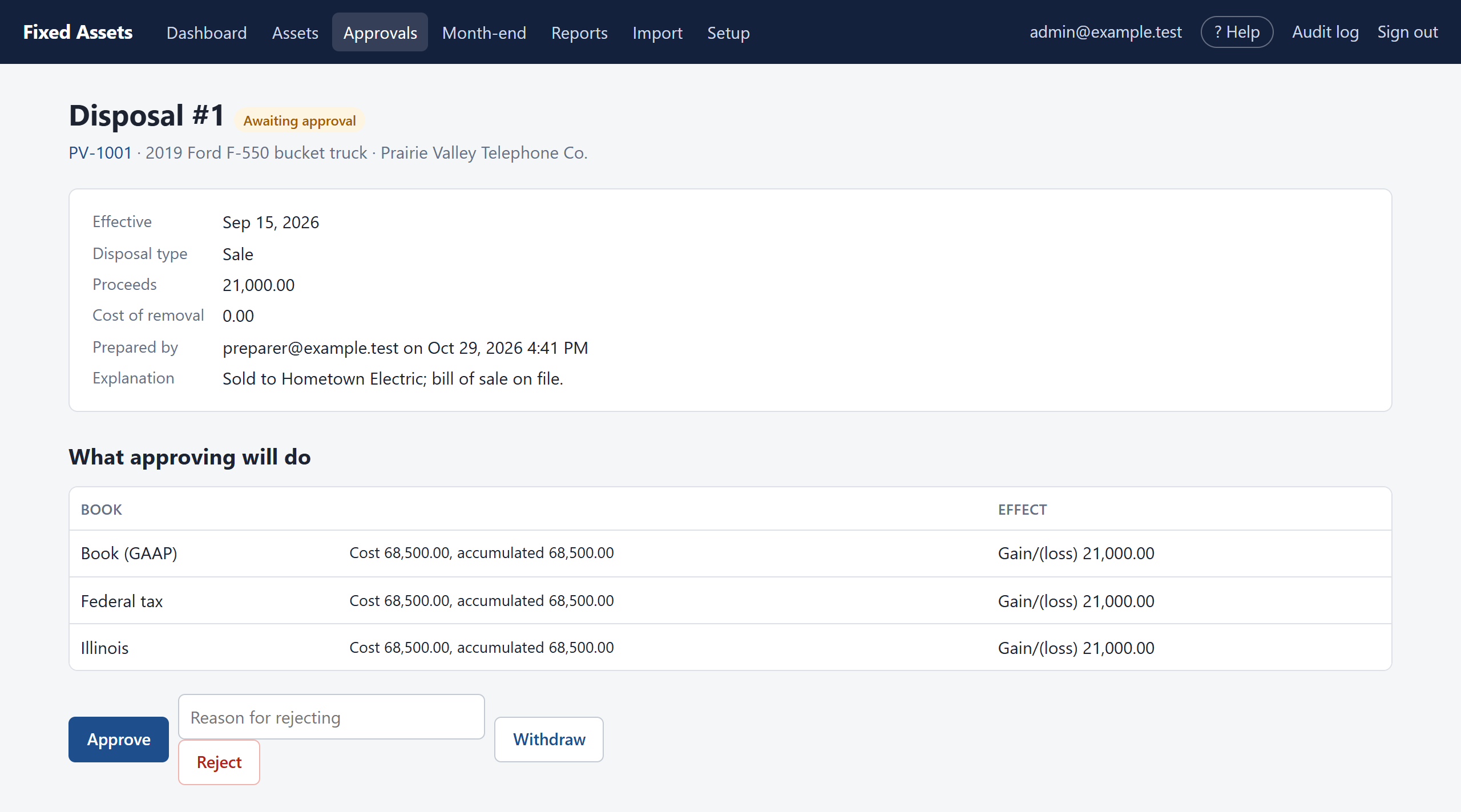
Click Approve to record it, or type a reason and click Reject. A rejected change stays in the asset's history with your reason; the preparer can record a new one.
Approving an import
Open the import from Approvals. Check that every line of the Reconciliation says agrees, look through the list of assets, and click Approve, or Return with a reason.