Chapter 5
Importing your spreadsheet
Bringing your existing assets and their opening balances over from Excel.
You don't have to retype your fixed asset spreadsheet. The import reads it as it is, whatever its layout. You match its columns to the program's fields, check every row, reconcile the totals, and send it for approval like any other entry. The accumulated depreciation in your spreadsheet becomes each asset's opening balance.
Before you start
- The administrator has set up the company, with its opening month (the month-end the spreadsheet figures are as of).
- Save the spreadsheet as .xlsx (or .csv). Older .xls files: open them in Excel and use Save As.
- One company per import. If one workbook holds several companies, import each sheet separately.
- Keep the spreadsheet's totals handy: number of assets, total cost and total accumulated depreciation for each book.
Step 1: Upload
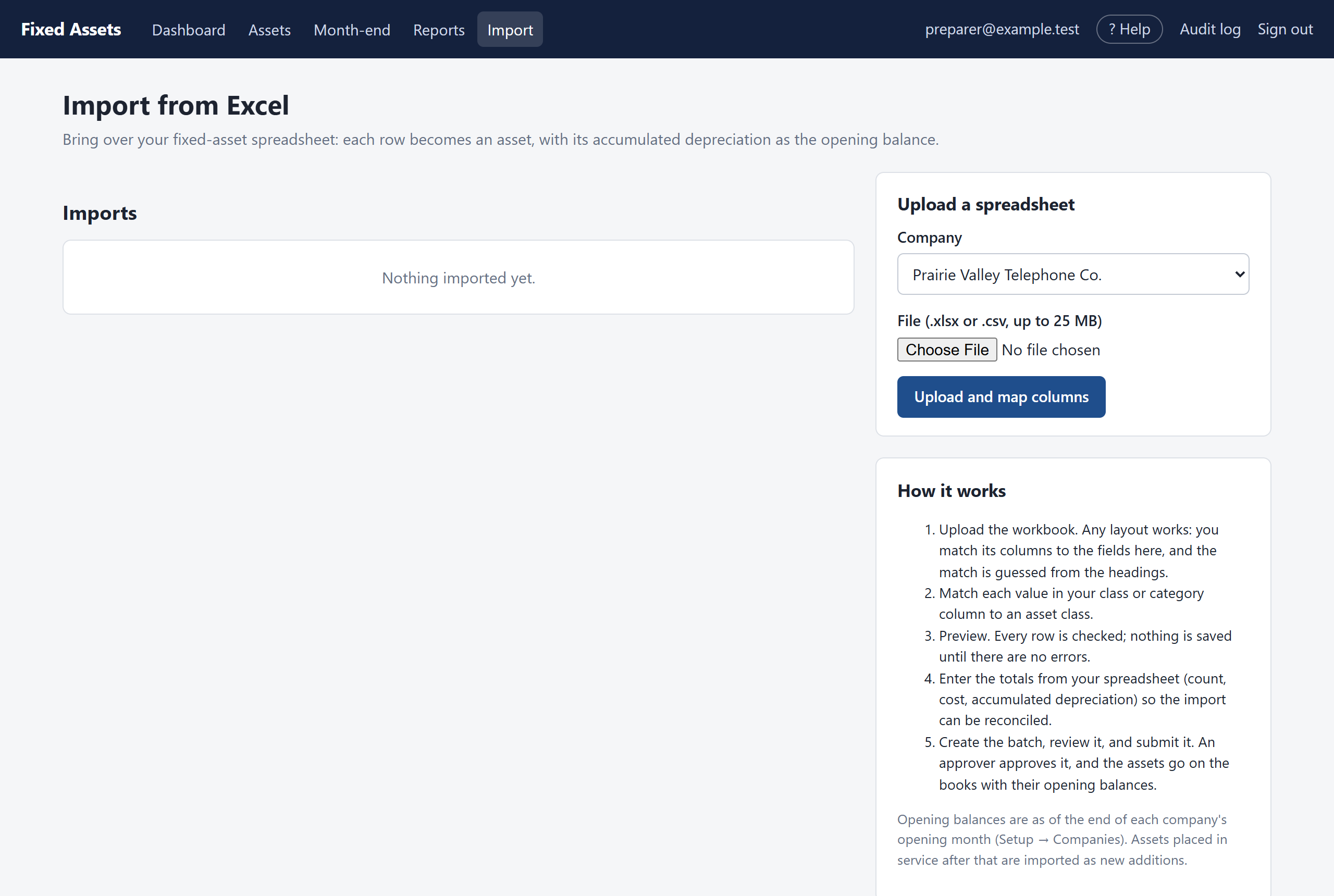
Click Import. On the right, choose the company and the file, then click Upload and map columns.
Step 2: Match the columns
The program finds the row with your column headings and guesses which column is which. Check each match and correct any that are wrong. Leave a field as "—" if your spreadsheet doesn't have it.
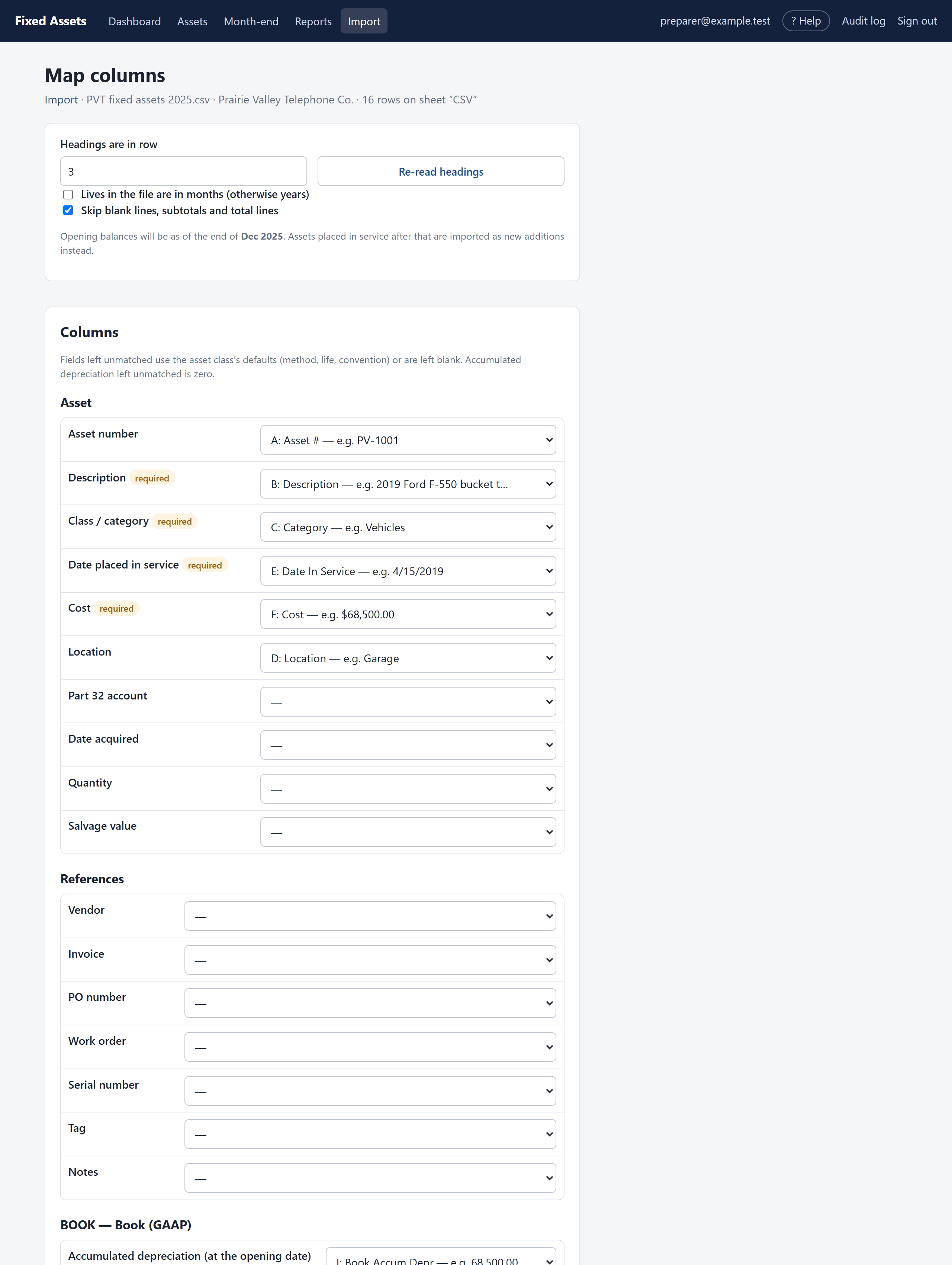
- Description, Class, Date placed in service and Cost are required.
- For each book there are columns for accumulated depreciation, method, life and convention. If method or life are left unmatched, each asset uses its class's default.
- If your spreadsheet has the same figures for two books (federal and state, say), you can match the same column to both.
- Tick Lives in the file are in months if your lives are in months rather than years.
- Leave Skip blank lines, subtotals and total lines ticked so that a TOTAL row isn't imported as an asset.
Step 3: Enter the spreadsheet totals
At the bottom, type the totals from your spreadsheet: the number of assets, total cost and total accumulated depreciation for each book. They're kept with the import so that everyone can see it agrees with the spreadsheet.
Step 4: Check and preview
Click Check and preview. Every row is checked, and nothing is saved yet.
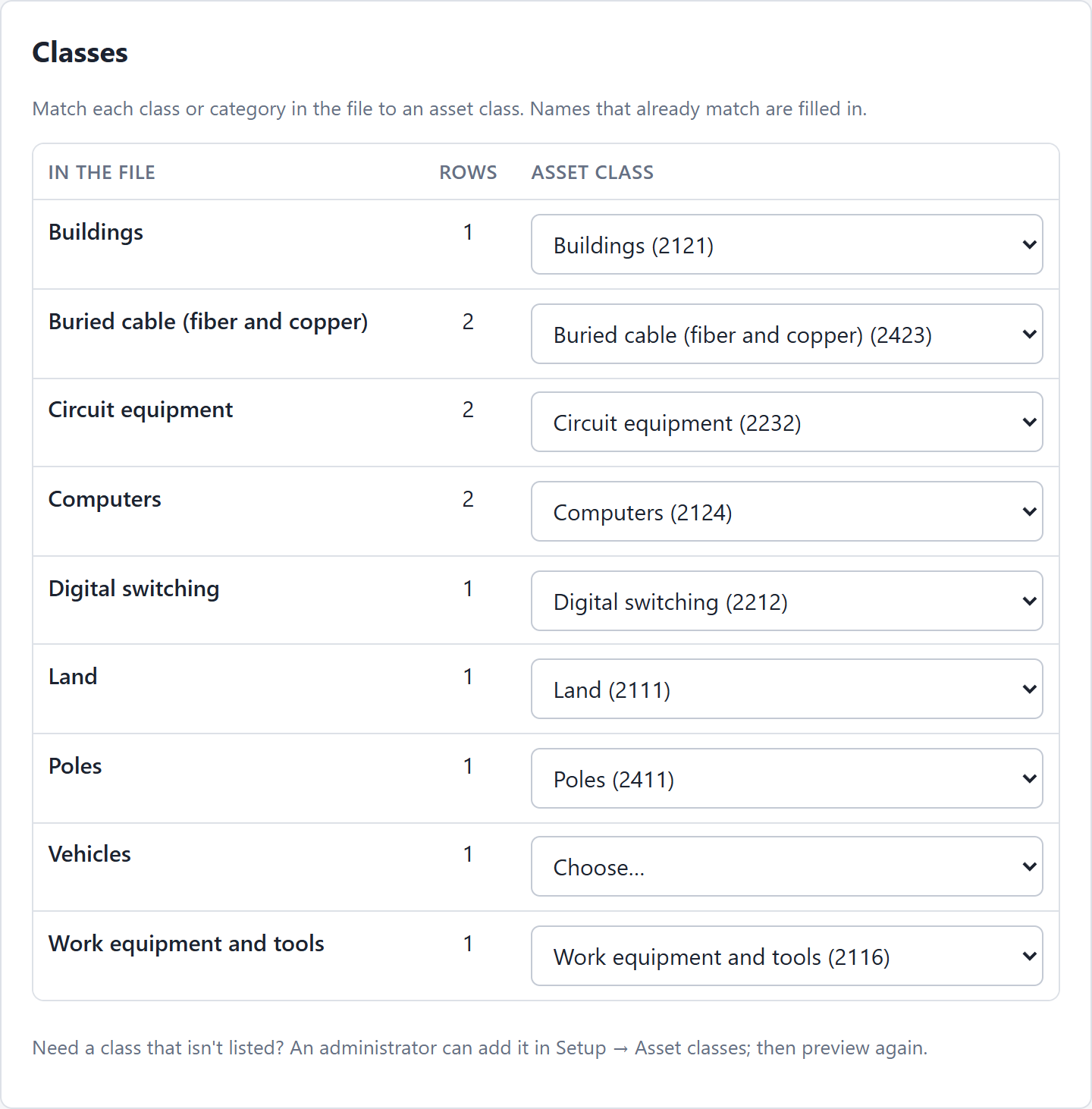
If your spreadsheet uses category names that don't match the asset classes exactly, a Classes box appears. Choose the right class for each one, then click Check and preview again.
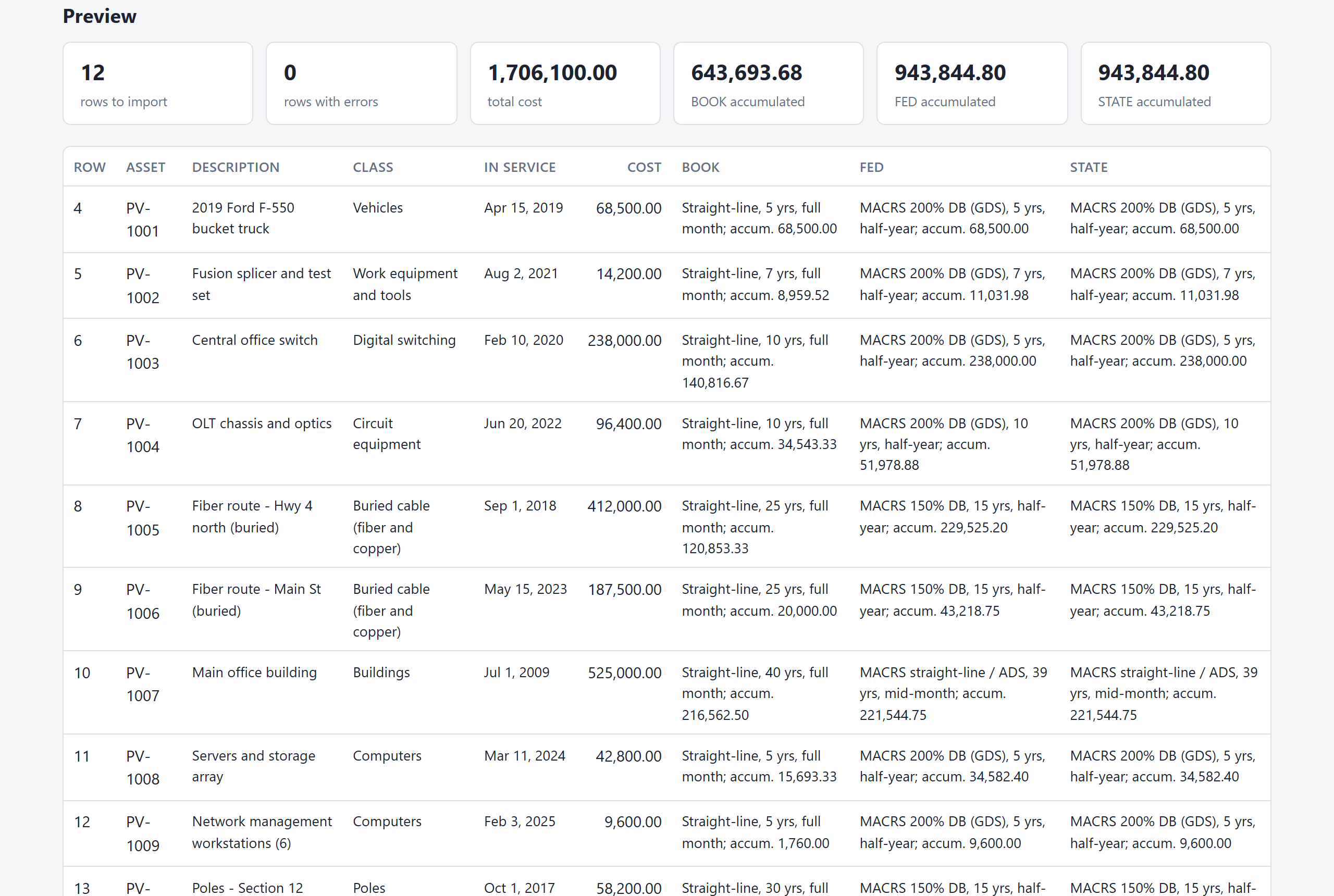
The preview shows how many rows will be imported, how many have errors, and the totals the program has read. Below that are the first rows as they will be imported.
Any row with a problem is listed by its row number in the spreadsheet, with the reason: a date that isn't a date, a cost that isn't a number, an asset number used twice. Fix the spreadsheet and upload it again, or fix the match and preview again. Create import batch stays greyed out until there are no errors.
Step 5: Create the batch, reconcile and submit
Click Create import batch. The assets are saved as drafts and you see the batch page. The Reconciliation table compares what was imported with the totals you typed in. Every line should say agrees.
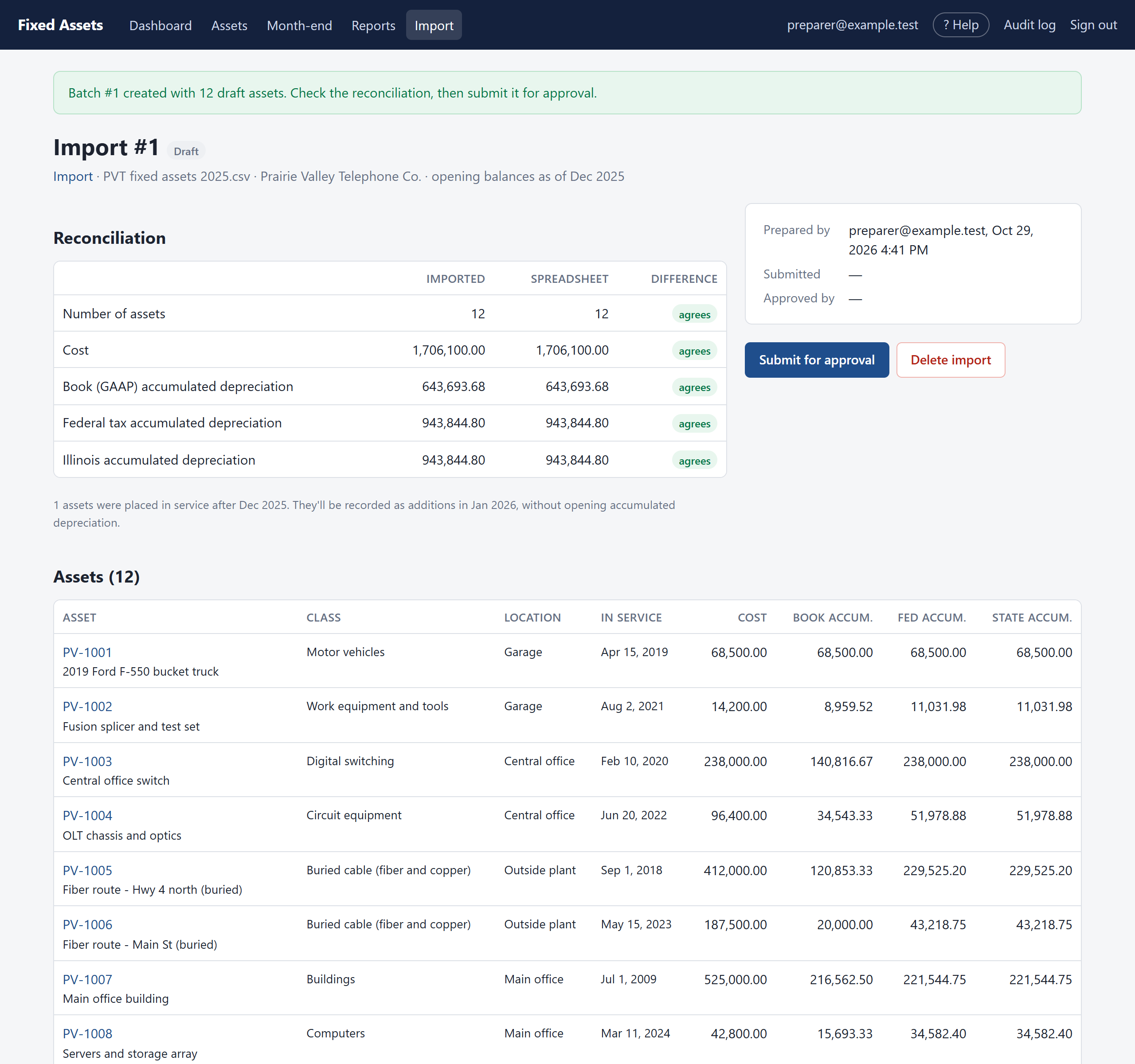
If it agrees, click Submit for approval. If something is wrong, click Delete import, fix the spreadsheet and start again; nothing has reached the books yet.
Step 6: Approval
An approver opens the batch from Approvals, checks the reconciliation, and clicks Approve. All the assets go on the books at once with their opening balances. If the approver returns the batch, the reason is shown at the top of the batch page.