Chapter 2
Signing in
Your password, the authenticator app, recovery codes and what to do if you are locked out.
Open the web address your administrator gave you, for example https://fixedassets.agtelco.com. Bookmark it, and always use the full name: opening the site by its IP address will not work.
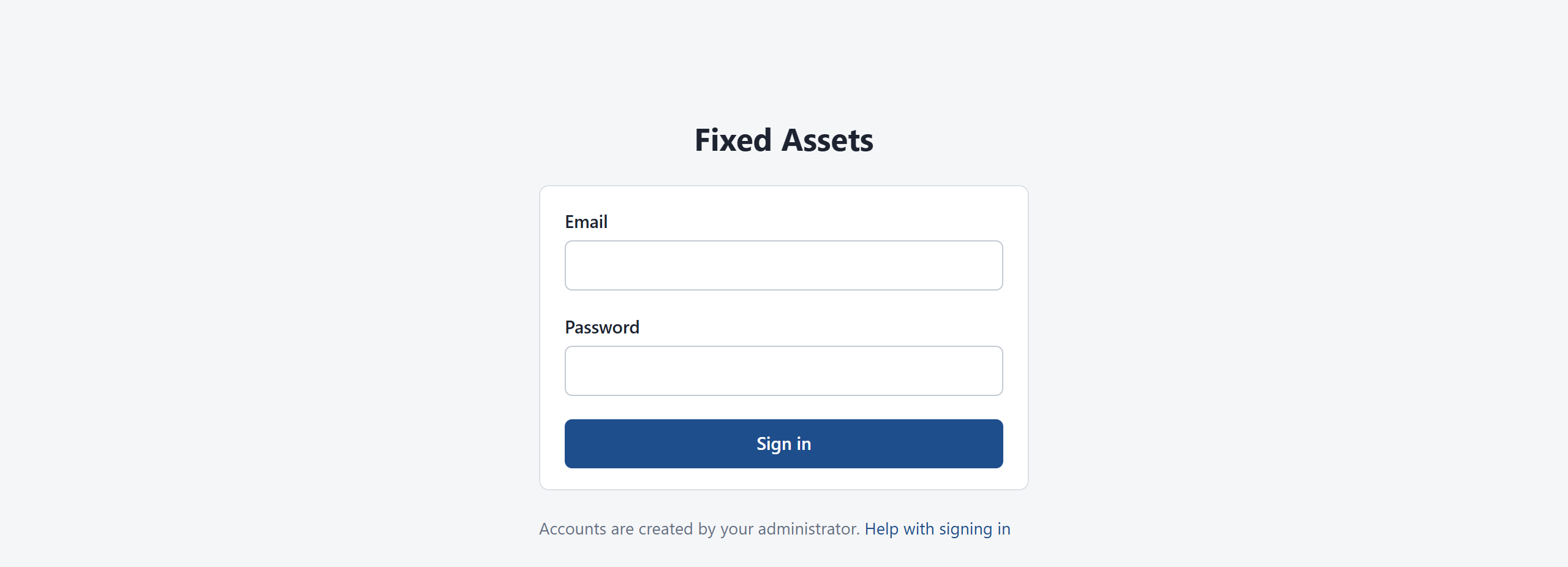
- Type your email address and password.
- Click Sign in.
- If you are asked for a code, open the authenticator app on your phone and type the six-digit code it shows for Fixed Assets.
Your first sign-in
Your administrator gives you a temporary password. The first time you sign in, the program takes you straight to Account security and asks you to choose your own password. Choose one at least 12 characters long, with upper case, lower case and a number. A short sentence you will remember makes a good password, such as "Prairie fiber 2026 rocks".
Setting up two-factor sign-in
If your administrator requires two-factor sign-in, you are asked to set it up next. Two-factor means that signing in needs something you know (your password) and something you have (your phone). Someone who learns your password still cannot get in.
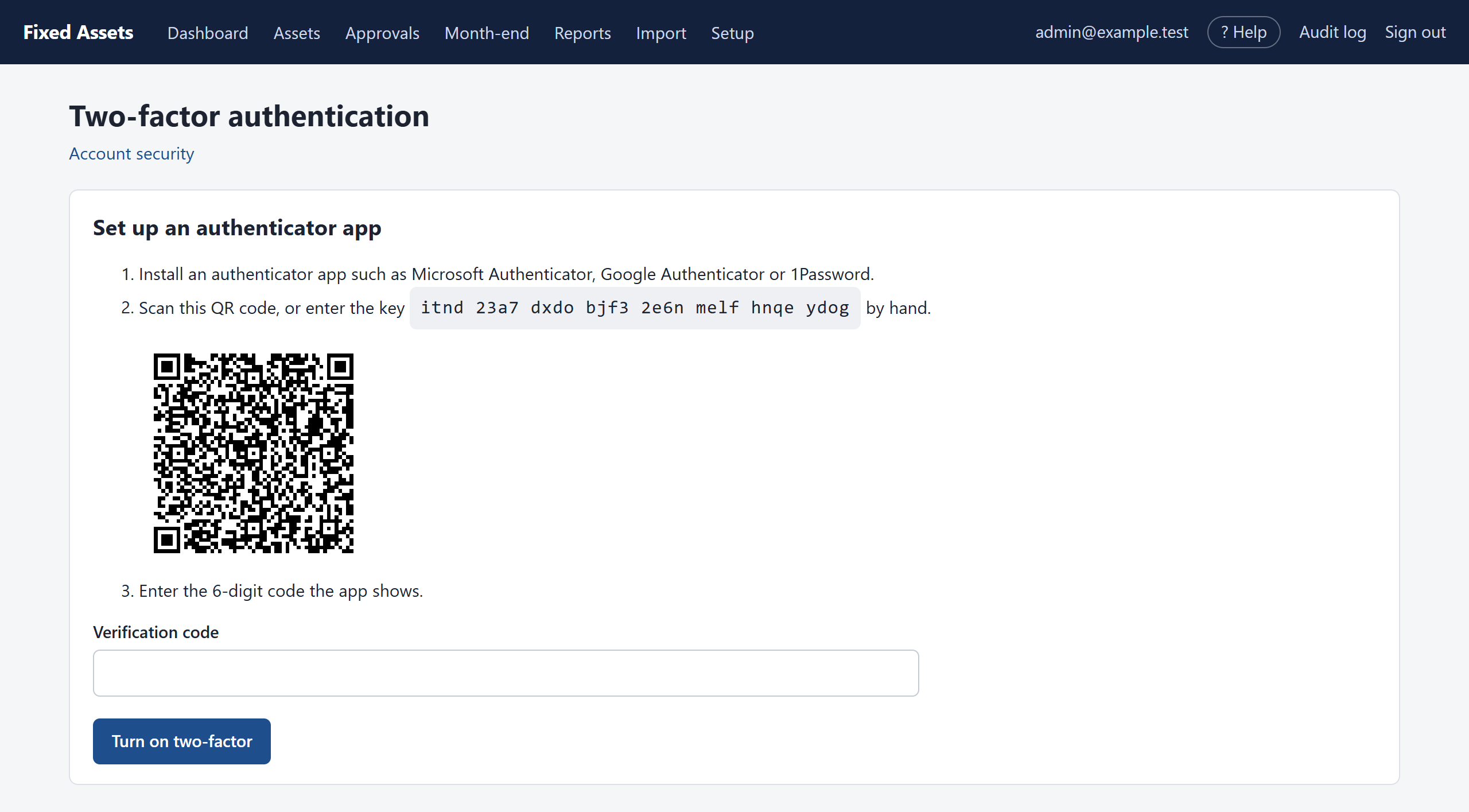
- Install an authenticator app on your phone if you don't have one: Microsoft Authenticator, Google Authenticator and 1Password all work.
- In the app, choose to add an account, then scan the QR code on the screen. If you can't scan it, type the key shown under the code instead.
- The app now shows a six-digit code for Fixed Assets that changes every 30 seconds. Type it into Verification code and click Turn on two-factor.
- The program shows you 10 recovery codes. Save them somewhere safe, such as a password manager or a printed copy in a locked drawer. Each code can be used once to sign in if you lose your phone.
Your account
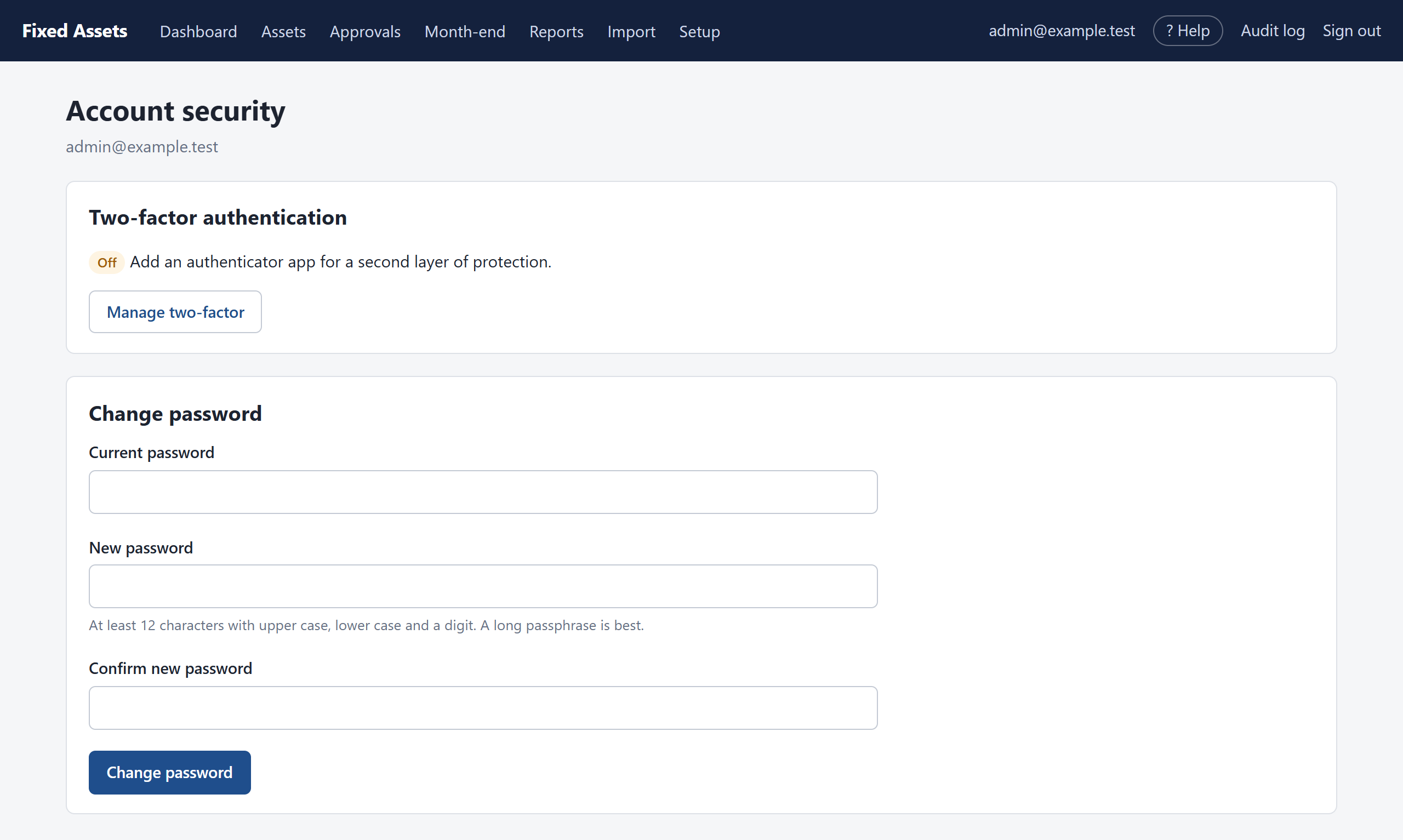
Click your email address at the top right to open Account security. Here you can change your password and manage your authenticator app, including getting a fresh set of recovery codes.
Staying signed in, and signing out
- You are signed out after 30 minutes without activity, and whenever you close the browser.
- Click Sign out at the top right when you finish, especially on a shared computer.
If you can't get in
| What you see | What to do |
|---|---|
| "Incorrect email or password" | Check for typing mistakes and Caps Lock. After five wrong tries the account locks for 15 minutes. |
| "This account is locked…" | Wait 15 minutes and try again, or ask the administrator to unlock you (Setup → Users → your name → Unlock). It can also mean the administrator has disabled the account. |
| "That code isn't valid" | Make sure your phone's clock is set automatically; the codes depend on the time. Type the newest code. |
| Lost or replaced your phone | Sign in with one of your recovery codes and tick "This is a recovery code". Then set up the app again on the new phone. No recovery codes? Ask the administrator to reset your two-factor sign-in. |